


FAQ
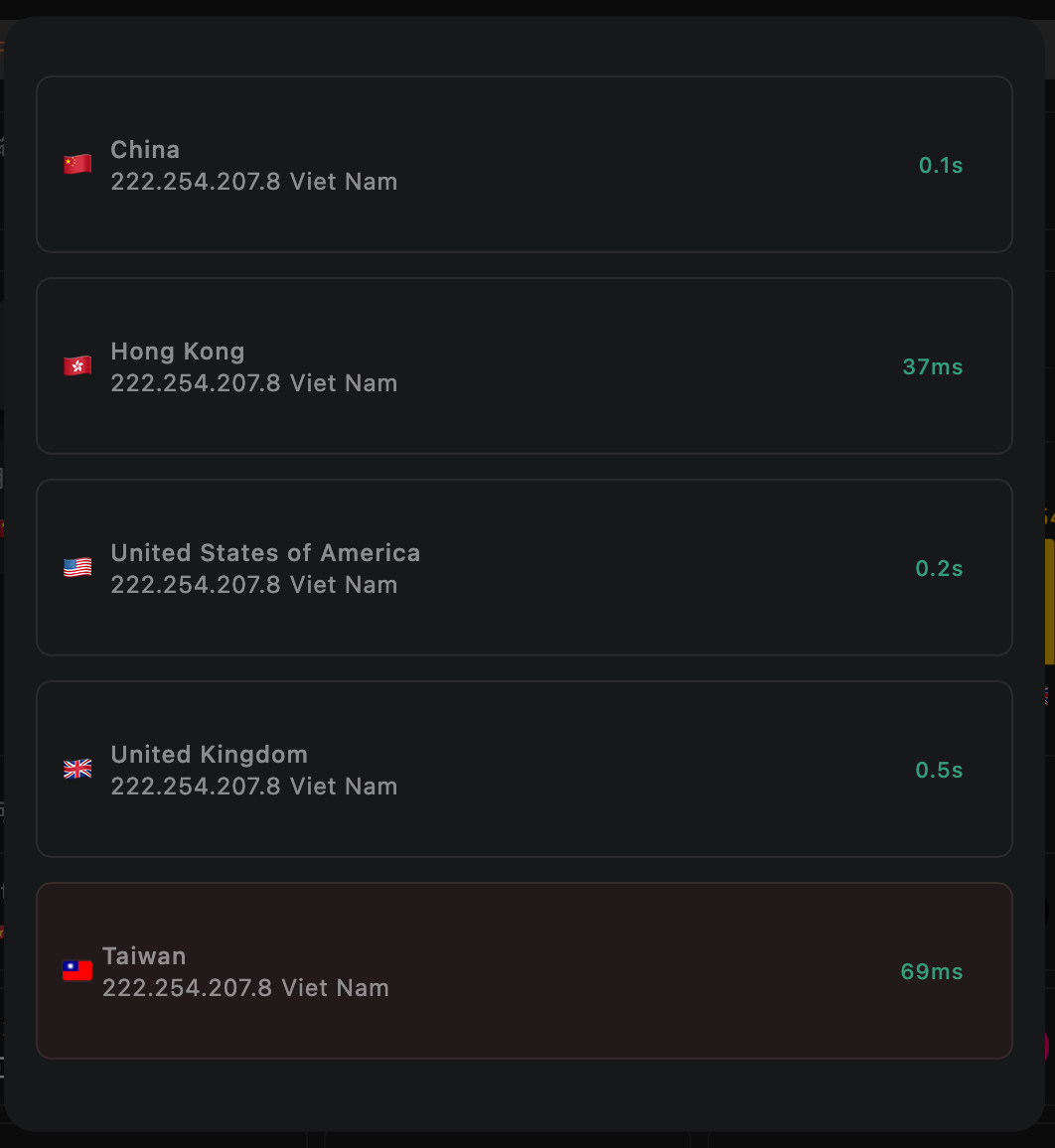
How does the 5UF VPN app home screen speed test work, and will it use much data? 
On the 5UF VPN (V5) home screen, the speed test sends a very small HTTP request to our dedicated test page. The page only shows your egress IP, so data usage is minimal and it should not meaningfully affect your allowance or billing.
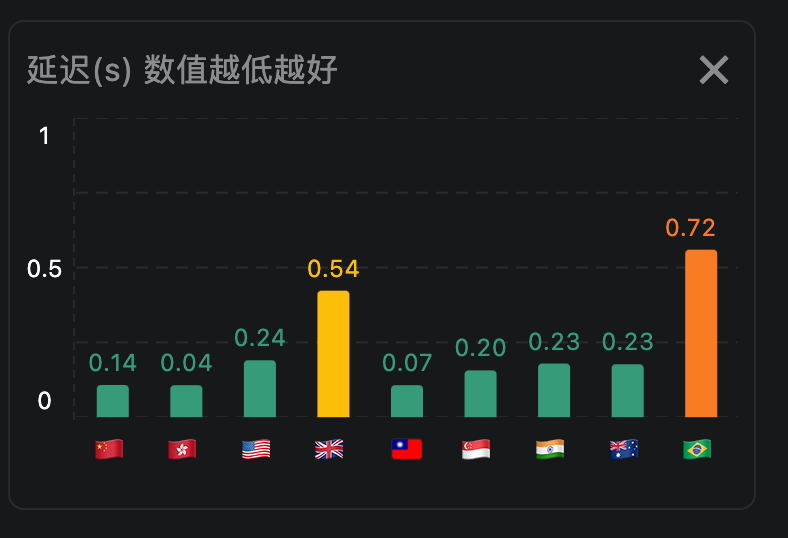
The test measures network latency (how quickly you can reach a given node), not your maximum download speed. Unlike many tools that download large files to estimate peak bandwidth, we focus on round-trip delay to that node only.
We take multiple samples and show an average. Lower numbers mean faster response (lower latency) to that node.
Multiple Connections Issue
If the app reports that the connection limit has been reached but you confirm you are not actually using more devices than your plan allows, wait a short while first: the system will usually remove stale sessions automatically.
If it still does not clear after about five minutes and you confirm no one else is sharing the account, you can:
- Open the online sessions page in a browser (sign in required): /transferlog/vpn/online/1/
- Or in the app: go to Settings, open your profile card, tap Online connections, then swipe left on a session to force disconnect it.
Important: If a device is actively using the VPN, a forced disconnect may reconnect immediately. Stop or disconnect the VPN on that device first, then force the session offline if needed.
What to do if the VPN cannot connect or is too slow
If you are using the latest 5UF VPN app, long-term connection failure is usually uncommon.
If you are on an older iOS release (for example iOS 16 or earlier) or you cannot use the official app on your device, you may hit compatibility or installation limits. Use a third-party VPN client with 5UF and follow this guide: How to use a third-party app with 5UF VPN (tutorial). The reinstall, speed-test, and ticket steps below mainly apply when you can run the official app.
If the VPN cannot connect, the Connect button does nothing, or the speed feels slow, use the steps below to check the issue quickly.
1. What if tapping Connect does nothing?
This is usually not caused by the server itself. In most cases, the app was denied VPN permission the first time it asked the system to create the VPN connection.
The fastest solution is to reinstall the app.
- Uninstall the current app
- Install the latest 5UF VPN app again
- When you tap Connect again, allow the system to create the VPN connection
If the first permission request was denied, the system often will not properly trigger the VPN authorization flow again, so reinstalling is usually the fastest and simplest solution.
2. What if the VPN connects but the speed is slow?
The latest app already includes built-in speed testing and app availability checks on the home page, so you can evaluate the current network condition before switching servers blindly.
- You can test latency for servers in different countries from the home page
- In general, a result of under 1 second is considered relatively normal
- After switching to another server, the app can test again so you can compare quickly
- The app also checks availability for major services such as TikTok
- It can also help you identify which service region the current server is closer to, such as Japan or Hong Kong
These tools help you quickly understand whether the problem is caused by the current server, your current network environment, or the service you are trying to use.
3. What if the issue still cannot be solved?
If you already tested and the VPN is still slow, cannot connect, or you are not sure how to judge the result, use the built-in ticket feature in the latest app and contact support directly.
- Open the support ticket section in the latest app
- At the bottom of each ticket page, you will see related action buttons
- Send the test results to support
- Our support team can use your speed test, app availability test, and network diagnostic results to identify the issue faster
The ticket system now supports better email and push notifications, making it easier for us to contact you and solve the issue more quickly.
Recommendation: when you run into a problem, start with the built-in speed test, app availability check, and ticket feedback tools in the latest 5UF VPN app. This is usually faster and more accurate than describing the problem manually.
TikTok not working? Quick 5UF VPN setup guide
If TikTok still shows a black screen, fails to load, or redirects to Douyin even after you connect to a VPN, the problem is usually not just the IP address. TikTok also checks your current phone and network environment.
We recommend using the latest 5UF VPN app.
Quick setup:
- Fully close TikTok first.
- Turn on Airplane Mode and wait a few seconds.
- While Airplane Mode is on, manually turn Wi-Fi back on.
- Open the 5UF VPN app and connect to an available server.
- After the VPN is connected, open TikTok.
- Once TikTok loads normally, you can usually turn off Airplane Mode and return to normal mode.
Recommendations:
- Try to avoid Hong Kong servers, as they may affect TikTok region detection.
- For the same TikTok account, try to keep using the same server to avoid cross-region recommendations.
- If one server does not work well, switch to another server in the same region instead of changing countries too often.
If it still does not work:
- Switch between Wi-Fi and mobile data, then try again.
- Change to another non-Hong Kong server.
- Fully close TikTok and reopen it.
For long-term stable TikTok use, keep using the latest 5UF VPN app and try to maintain a stable server and network environment.
What is the “Compatibility Password”? How is it different from the regular account password?
To support certain legacy VPN dialing protocols, 5UF VPN previously introduced a Compatibility Password.
The Compatibility Password is mainly used for:
-
L2TP
-
PPTP
-
IKEv2
-
“Super VPN” servers in the browser extension (Note: not during the first login, but when selecting a server and being prompted to enter the password again.)
These legacy protocols have technical limitations:
-
The password must be stored in plaintext on the server side
-
Special characters are not supported
-
Encryption standards are outdated
Because of these constraints, a separate Compatibility Password was required.
What is the regular account password?
The latest 5UF VPN APP now uses a modern password encryption mechanism that meets current industry security standards:
-
Passwords are securely encrypted and stored
-
Full character set supported (including special characters)
-
Not directly tied to VPN dialing authentication
-
No plaintext storage required
In the new client, VPN authentication is handled through upgraded secure mechanisms and is independent from the old Compatibility Password.
Why are we phasing out the Compatibility Password?
Due to the technical limitations of legacy protocols:
-
Passwords must be stored in plaintext (security risk)
-
No support for special characters
-
Weaker encryption design
For security reasons, we have decided to gradually discontinue support for Compatibility Passwords and legacy protocols.
Can existing users still use the Compatibility Password?
Yes, existing users can continue using it for now.
However:
-
If you change your account password
-
The new password will become your regular account password
-
The old Compatibility Password will not automatically sync
-
The two passwords will become different
This is why we strongly recommend migrating to the latest client.
Our Recommendation
We strongly recommend all users:
-
Switch to the latest version of the 5UF VPN client
-
Stop using legacy apps
-
Stop using legacy protocols (L2TP / PPTP / IKEv2, etc.)
Legacy protocol support and Compatibility Password functionality will be discontinued in future updates.
The new client provides:
-
Stronger encryption
-
Higher security standards
-
More stable connections
If you have any questions, please contact our support team via the in-app ticket system.
5UF VPN Push Notification Test – FAQ (English Version)
1. What is the Push Notification Test?
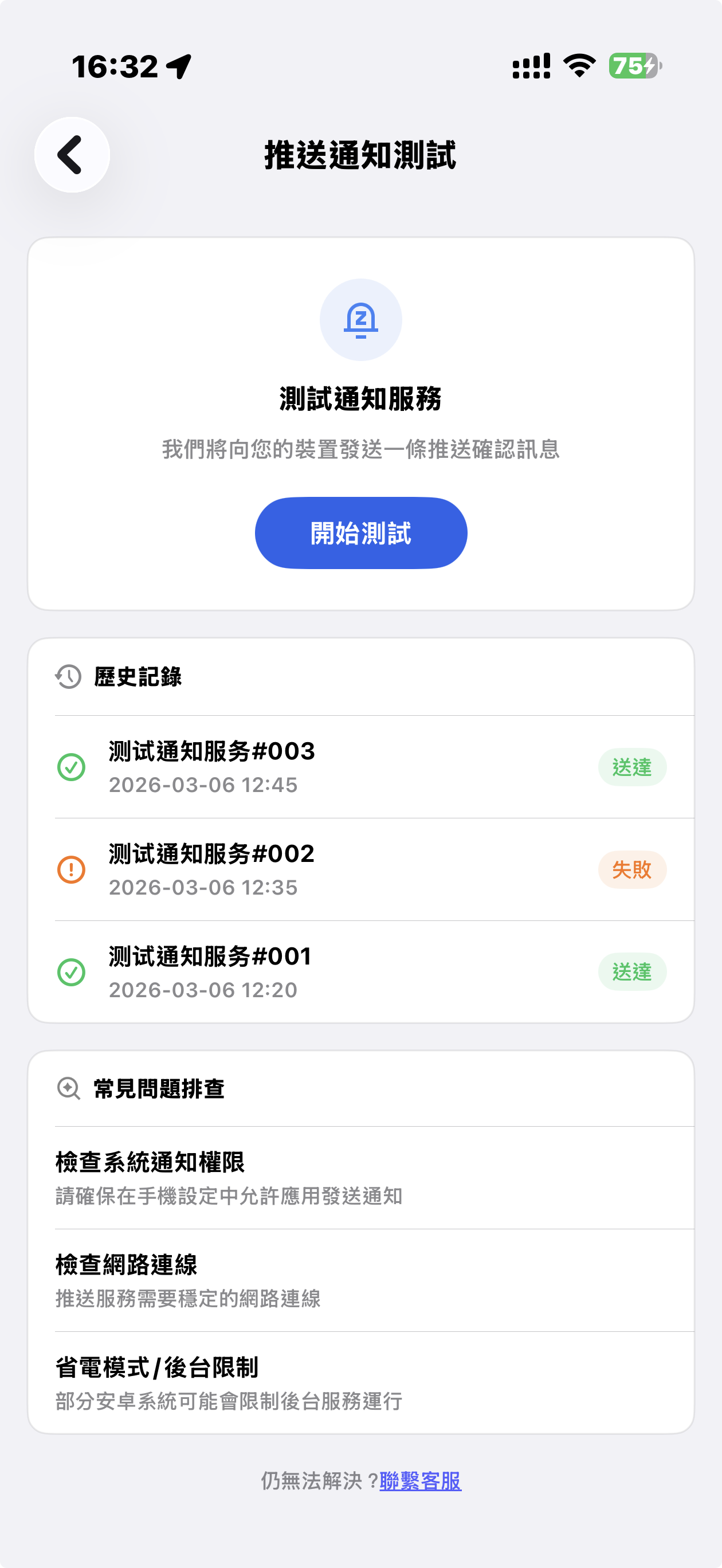
To ensure you receive customer support replies, account alerts, and important service updates, 5UF VPN now includes a Push Notification Test feature.
Tap “Start Test,” and a test notification will be sent to your device. The result will show:
-
✅ Delivered
-
❌ Failed
This helps you verify whether push notifications are working properly.
2. Why do VPN apps face more push issues?
VPN apps are more likely to encounter push delivery issues due to:
-
Android devices in China not supporting Google FCM
-
Manufacturer ROM restrictions (MIUI, EMUI, ColorOS, etc.)
-
Aggressive battery optimization
-
Network policy conflicts
Regular testing is recommended.
3. Special Notice for Android Devices in Mainland China (Important)
Android devices sold in Mainland China:
-
❌ Often do not support Google FCM
-
❌ May restrict overseas push channels
-
❌ Frequently disable background connections
You may need to:
1️⃣ Enable Auto Start
Settings → App Management → 5UF VPN → Allow Auto Start
2️⃣ Disable Battery Optimization
Settings → Battery → App Power Management → No Restrictions
3️⃣ Allow Background Activity
Make sure the app is not restricted or “deep sleeping.”
Brand-specific paths:
-
Huawei: Battery → App Launch Management
-
Xiaomi: App Management → Battery Saver
-
OPPO / vivo: Background Freeze Management
4. What if the test shows “Failed”?
Please check:
-
Notification permissions are enabled
-
Network connection is stable
-
Restart the device
Some Android systems temporarily suspend push channels.
5. Delivered but no popup?
Possible reasons:
-
You were using the app
-
Notification was delivered silently
-
Marked as low priority
Check your notification history.
6. Does VPN status affect push delivery?
Generally no.
However, delays may occur when:
-
Switching VPN nodes
-
Experiencing unstable network
-
Device enters deep power-saving mode
7. When should I test?
Recommended after:
-
Changing devices
-
Updating system
-
Updating 5UF VPN
-
Suspecting missed notifications
8. Why are push notifications important?
Push notifications ensure you receive:
-
🔔 Customer support replies
-
🔔 Account alerts
-
🔔 Service maintenance notices
-
🔔 Security updates
This is especially important for VPN users.
9. Still not working?
Please contact support in the app and provide:
-
Device brand & model
-
OS version
-
Screenshot of test result
We’ll assist you further.
How to Clear Cache Issues (Windows)
-
Close 5UF VPN completely
-
Make sure the application is fully exited.
-
Check the system tray and Task Manager to ensure no 5UF VPN processes are running.
-
-
Navigate to the cache folder
-
Open File Explorer and go to:
C:/Users/user/AppData/Roaming/com.top.wuf
-
Important: Replace user with your own Windows username, as that folder represents your account.
-
-
Delete all files inside this folder
-
Select all files and folders inside com.top.wuf and delete them.
-
This clears any cached data that may be causing issues.
-
-
Restart 5UF VPN with administrator rights
-
Right-click the 5UF VPN icon and choose Run as administrator.
-
This ensures the app can rebuild its cache properly and avoids permission issues.
-
✅ After this process, 5UF VPN should start fresh, without old cached data causing errors or slowdowns.
What to do if the Windows 5UF app cannot start or has cache issues
If the Windows version of 5UF APP does not respond, crashes, gets stuck, or fails to open, the cause is often damaged local cache data.
Recommended steps:
- Fully exit 5UF VPN and make sure no tray icon remains.
- Open
C:/Users/YourWindowsUsername/AppData/Roaming/com.top.wuf. - Delete the cached files in the
com.top.wuffolder. - Restart the computer.
- Right-click 5UF VPN and choose Run as Administrator.
If it still cannot start, contact support and provide your Windows version, device model, screenshot of the error, and the time when it happened.
If you are still using an older client, we recommend switching to the latest 5UF VPN app for better stability and compatibility.
TUN Mode vs System Proxy
- TUN mode creates a virtual network adapter on your device, intercepting and forwarding all traffic at the network (IP) layer. This ensures that all apps and services — even those that don’t support proxy settings — are routed through the VPN.
- Advantage → Full system coverage for all traffic.
- Limitation → Because it works at the routing level, connections may be less stable under certain devices or network environments.
- By attaching your system’s HTTP proxy directly to the VPN service, System Proxy offers a more stable and consistent connection.
- Advantage → Smooth, reliable, and stable performance.
- Limitation → Because some apps and websites do not support proxy mode, they may still be blocked in certain situations.
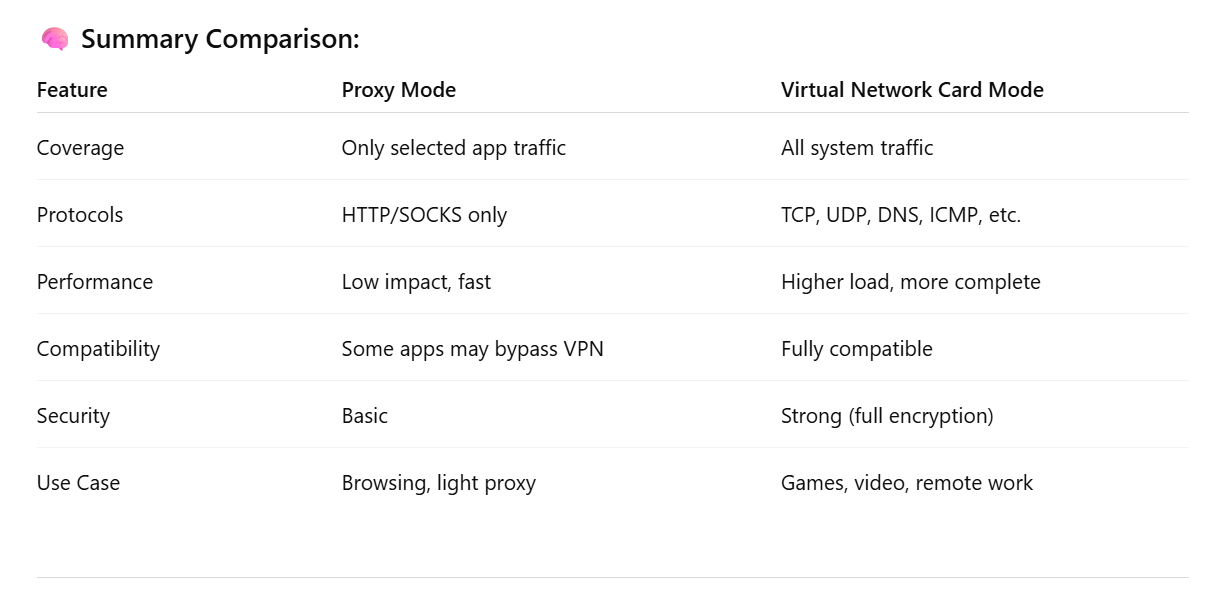
Difference between Virtual Network Card Mode and System Proxy Mode
? Simplified Explanation: Two VPN Modes
? 1. Proxy Mode
✅ What is it?
Only sends specific apps’ traffic through the VPN — like browsers or apps that support proxy settings.
? Key Features:
-
Works only with apps that support proxy protocols (like HTTP, SOCKS5).
-
Other apps on your system don’t go through the VPN.
-
Faster and lighter on system resources.
-
Some apps (like games or built-in network tools) might bypass the VPN.
-
More flexible — you can choose which apps use VPN and which don’t.
? Best For:
-
Browsing websites
-
Light or casual VPN use
-
When you only want to route some traffic through the VPN
? 2. Virtual Network Card Mode (TUN/TAP Mode)
✅ What is it?
Creates a virtual network card and takes over all traffic on your device, routing it through the VPN tunnel.
? Key Features:
-
Sends all traffic (web, apps, games, system services) through the VPN.
-
Supports all protocols: TCP, UDP, DNS, ICMP, etc.
-
More secure and complete coverage.
-
Uses more system resources than proxy mode but is more stable.
-
Common in VPNs like OpenVPN, WireGuard, L2TP, IKEv2, etc.
? Best For:
-
Streaming video
-
Online gaming
-
Remote work / accessing company networks
-
Full security and encryption
How to Create an Overseas Apple ID (Hong Kong) from Mainland China
Need access to apps that aren't available in the Mainland China App Store? Here's a simple step-by-step guide to help you create a Hong Kong Apple ID right from your iPhone — no VPN needed.
?️ Step 1: Go to Apple ID Website
-
Open Safari (or any browser) and go to https://account.apple.com/account#
-
Click “Create Your Apple ID” in the top-right corner.
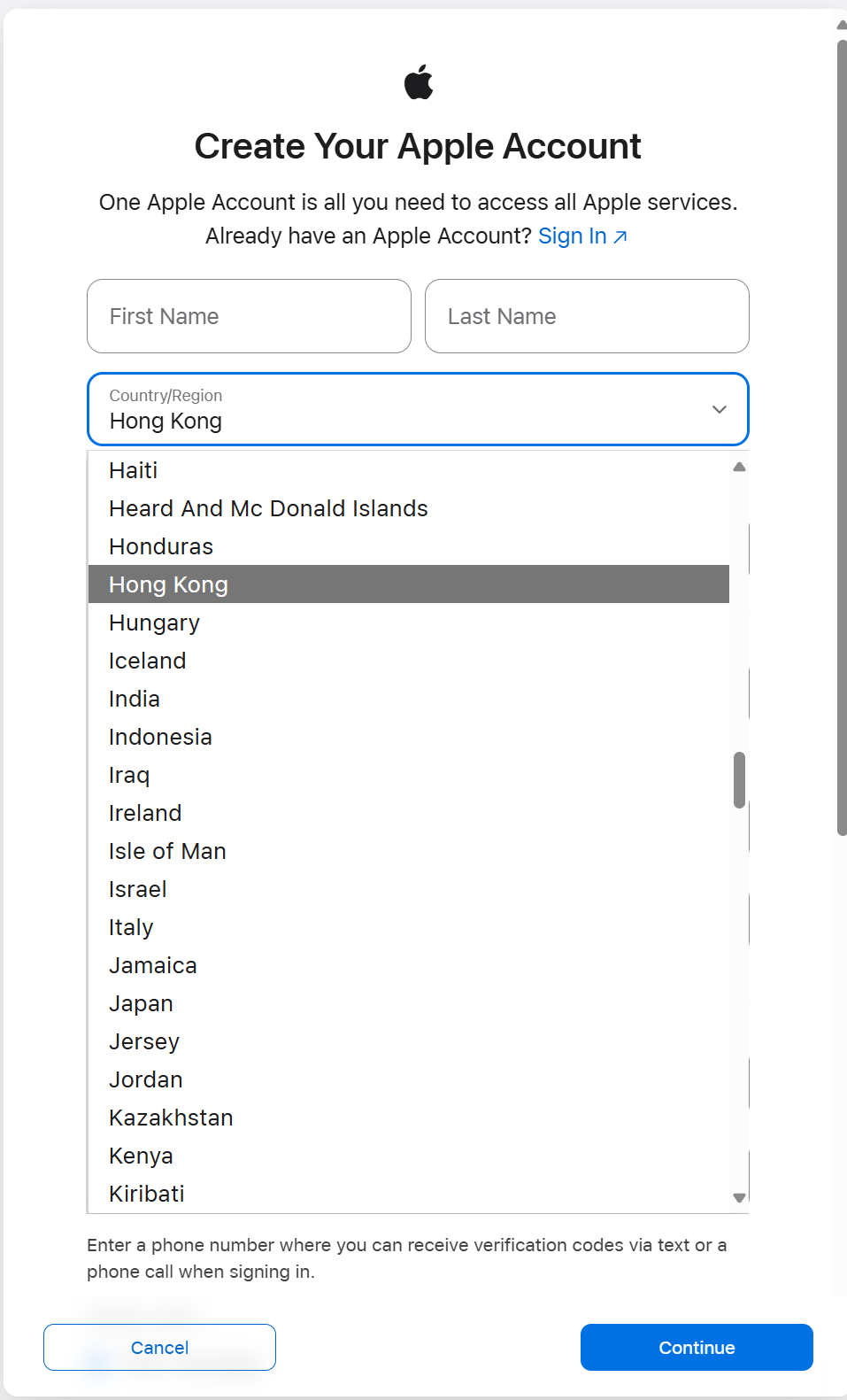
? Step 2: Enter Your Details
-
Fill in your first name, last name, and date of birth.
-
Enter a new email address (one that hasn’t been used with Apple before).
-
Choose a strong password.
-
Set your country or region to Hong Kong.
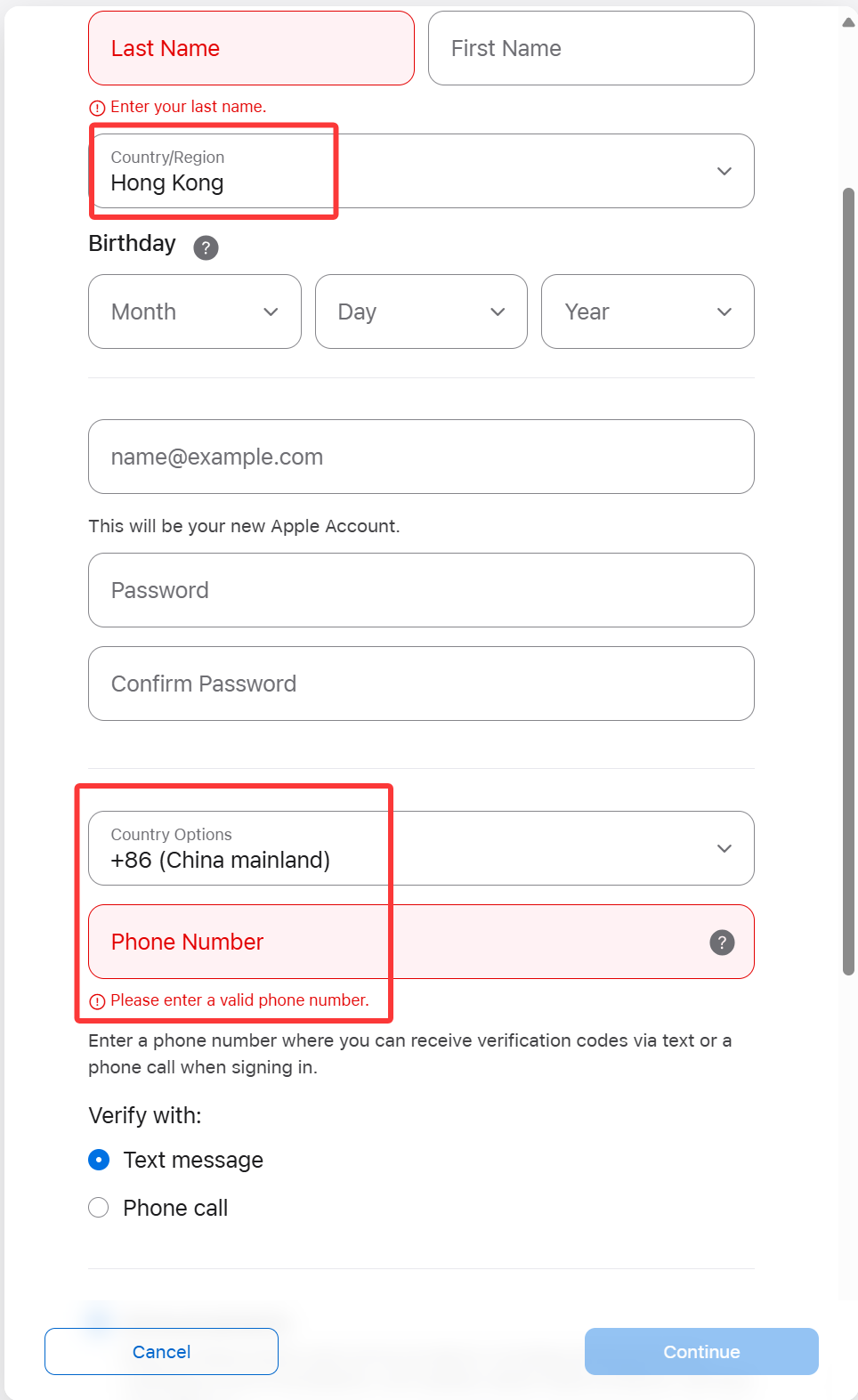
? Step 3: Add Your Phone Number
-
Use your Mainland China mobile number — it’s fine!
-
This number will receive a verification code, so keep it nearby.
✅ Apple allows you to verify an overseas Apple ID using a Chinese phone number.
? Step 4: Set the Billing Address
-
For the billing address, you can use any valid Hong Kong format.
-
Feel free to randomly fill in the address fields — just make sure it's realistic:
-
Example:
-
Street: 88 Queensway
-
District: Central
-
City: Hong Kong
-
Postal Code: 000000
-
Phone: +852 6123 4567
-
-
-
For payment method, choose None if it’s available.
? Tip: You can also use a Hong Kong hotel or store address for convenience.
✅ Step 5: Verify and Complete
-
Enter the verification code sent to your phone number.
-
Apple will also send a confirmation email — open it and click the link to verify.
-
Once verified, you can sign in with your new Hong Kong Apple ID.
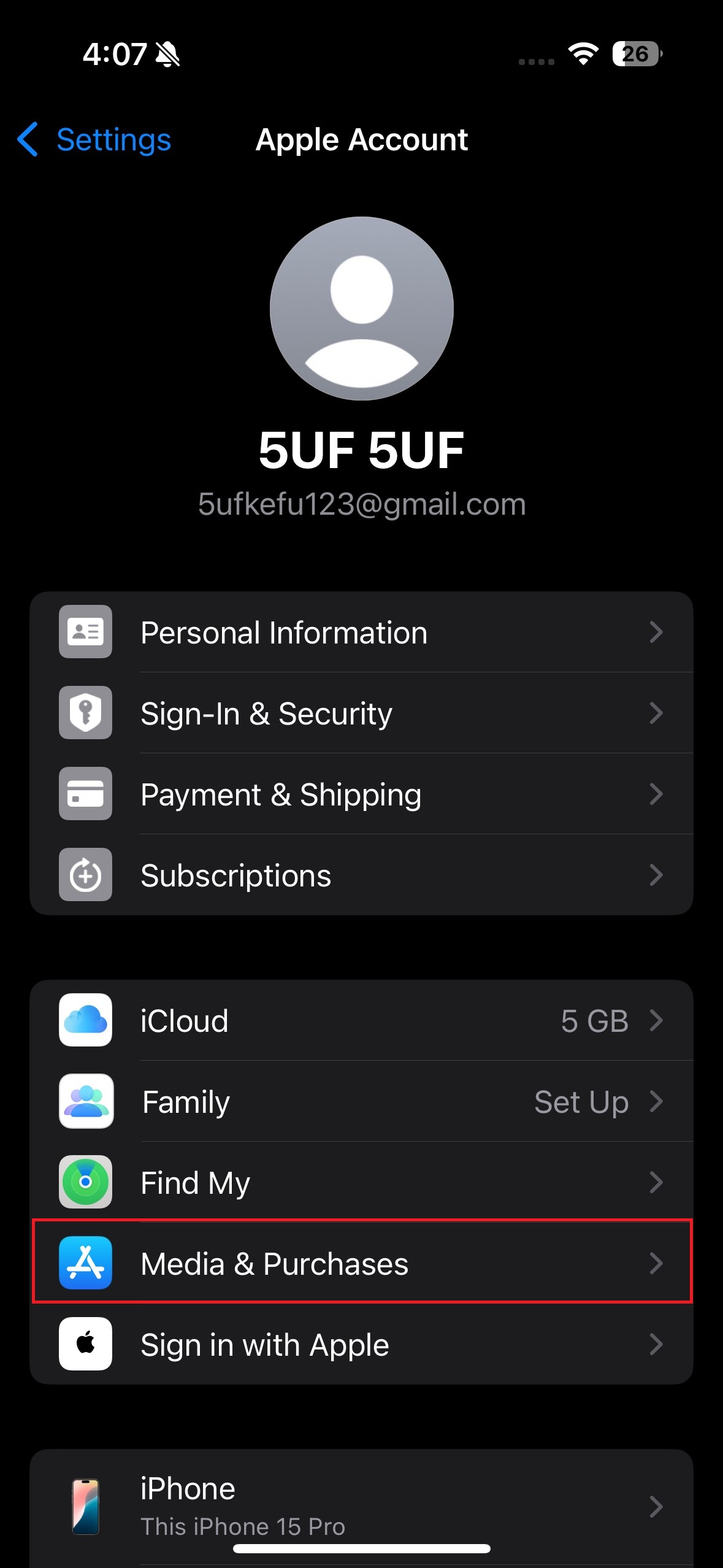
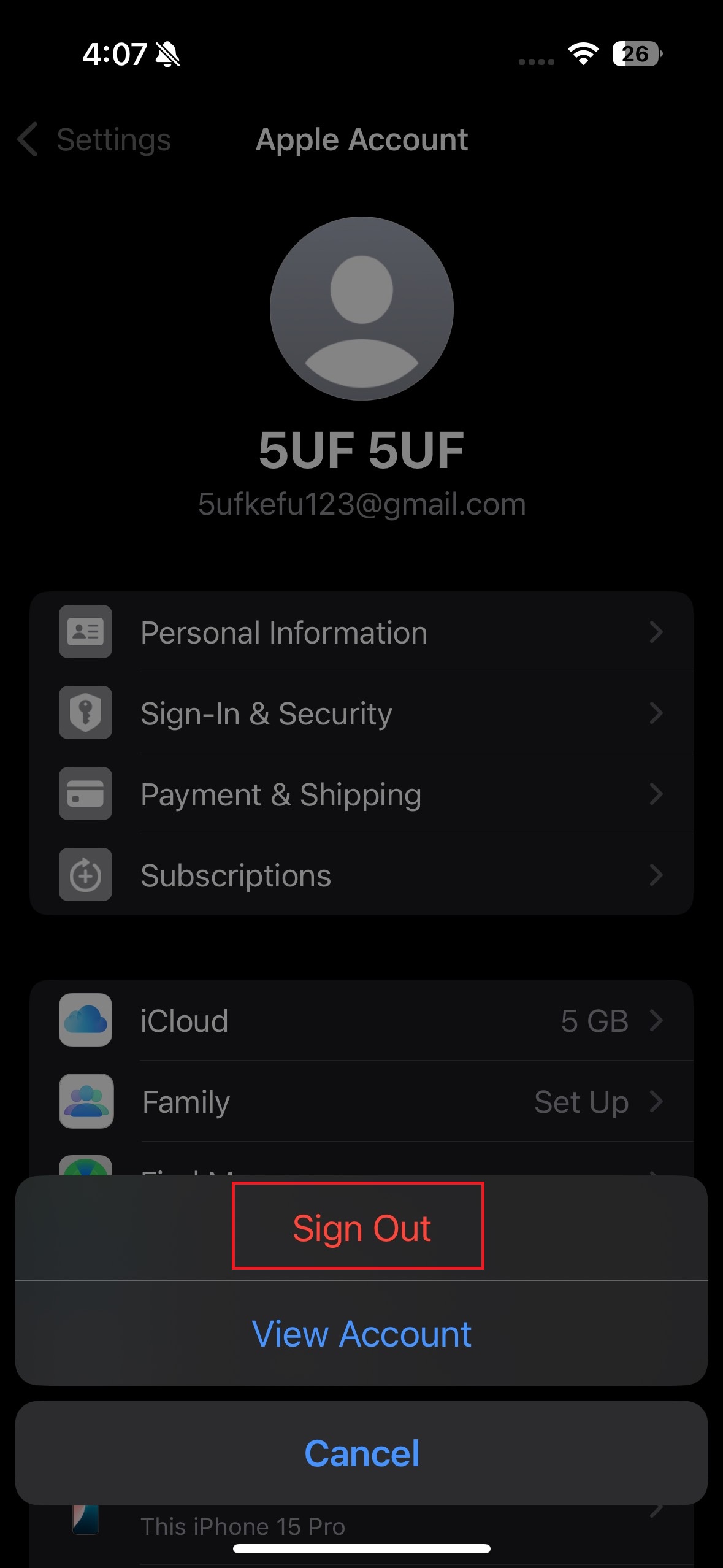
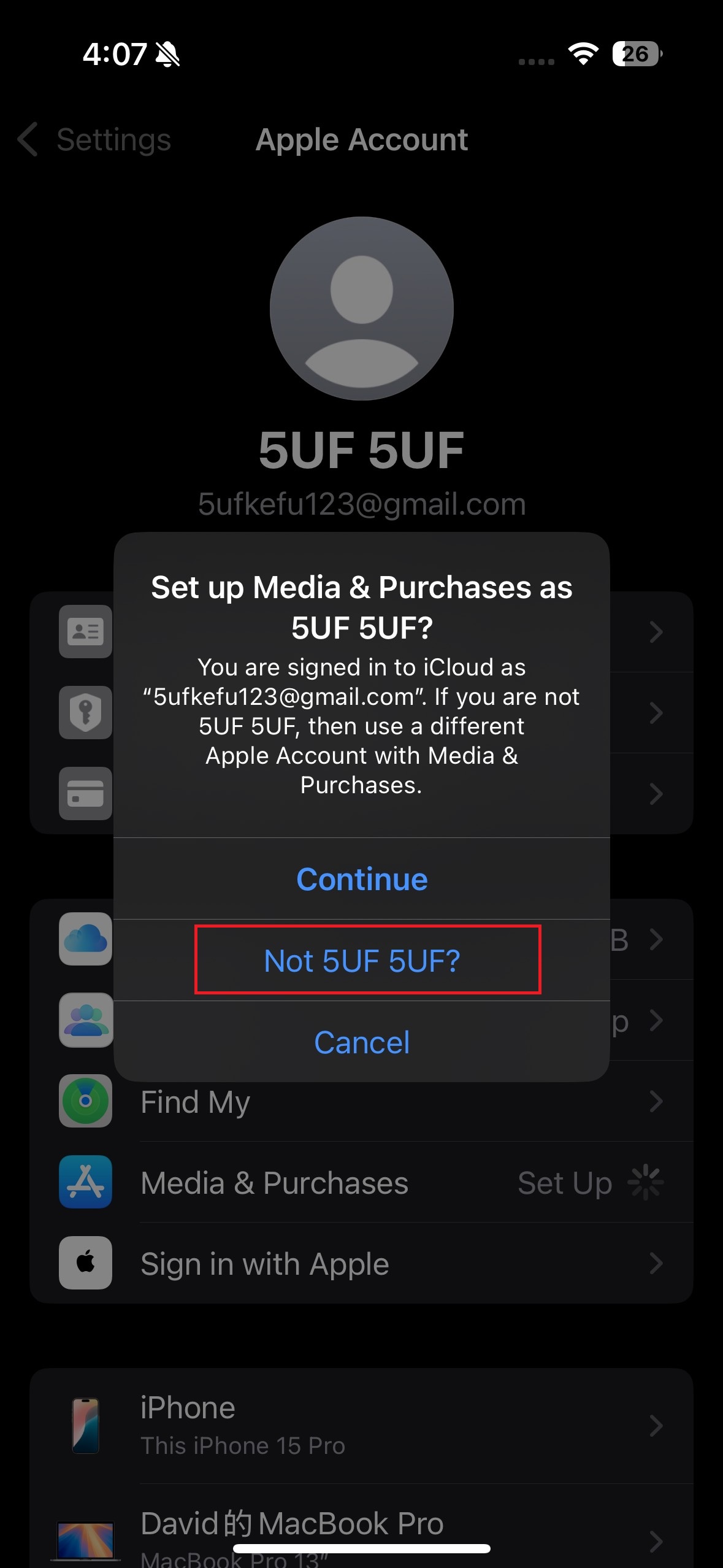
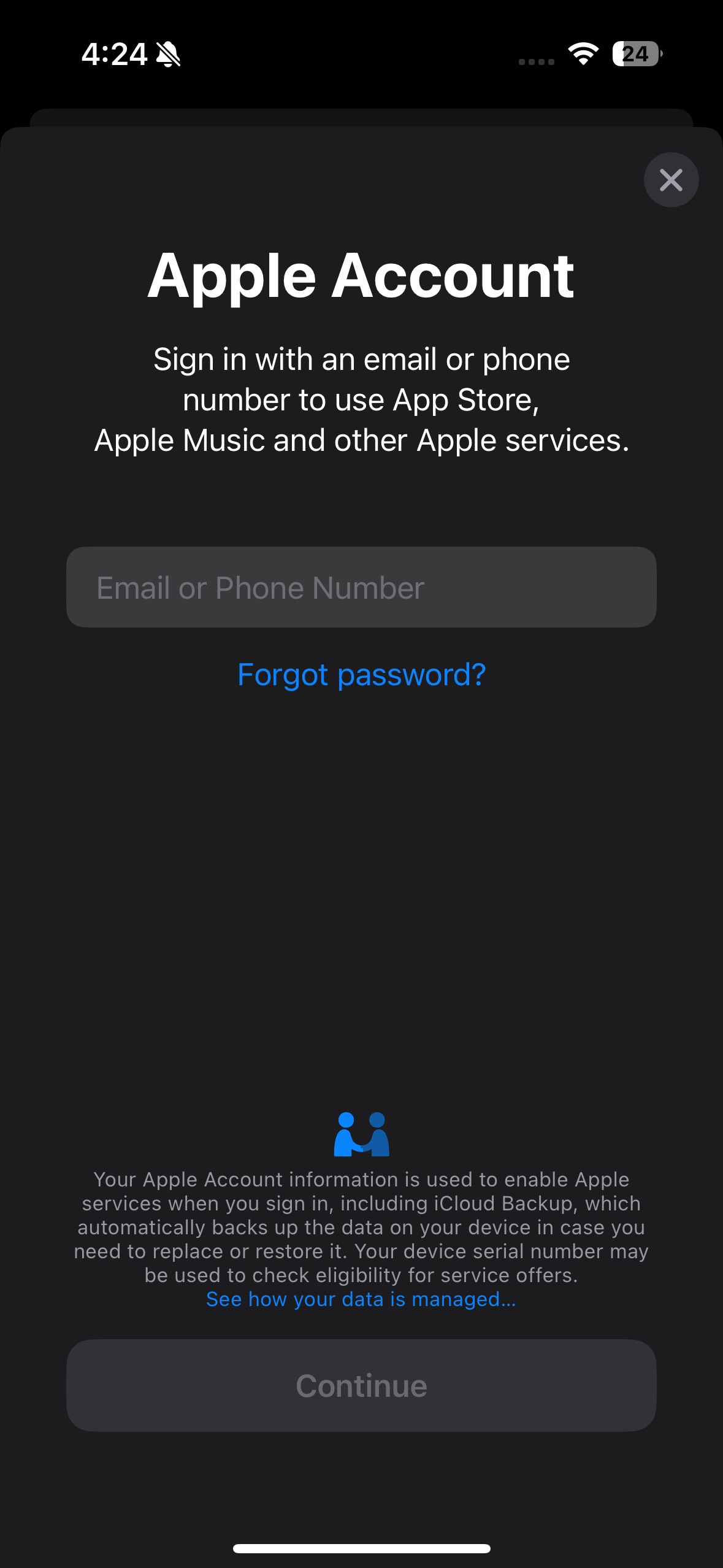
After signing out, return to the “Media & Purchases” section and sign in using the Apple ID you just created.
This will link your new account to the App Store and allow you to download apps from the selected region.
⚠️ A Few Notes:
-
Avoid switching Apple ID regions too often — it may affect app updates and subscriptions.
-
Don't use iCloud syncing with multiple Apple IDs on the same device.
-
If “None” isn’t showing under payment methods, try creating the account through the Apple ID website first, then log in on your iPhone.
Frequently Asked Questions
No, logging out only affects store-related services. Your personal data and iCloud services remain safe as long as you're still signed in to iCloud.
Photos
Contacts
Messages (iMessage)
FaceTime
iCloud Drive
Find My iPhone
App Store & iTunes Store access
Apple Music, if subscribed under that Apple ID
Apple TV+, Apple Arcade, and other subscriptions tied to that ID
Note: When updating installed apps, iOS uses the Apple ID that originally downloaded (or acquired) each app, including free titles, which still count as a purchase record. This is separate from which Apple ID is currently signed in under Media & Purchases for new App Store activity, so updates are generally unaffected.
✅ Apple TV+ and full TV app content
✅ Restricted apps (YouTube, Telegram, WhatsApp, etc.)
✅ Apple Arcade, Apple News, full Apple Music catalog
✅ More payment options (PayPal, HK gift cards)
✅ App Store in English & Traditional Chinese
1. Will logging out of my Apple ID under Media & Purchases affect my device?
✅ Not Affected (if still signed into iCloud):
❌ Affected:
? Switching from a Mainland China to Hong Kong Apple ID (Media & Purchases only) unlocks:
2. If my phone number has already been linked to another Apple account, can I still use the same phone number to create another account?
Answer: Yes, you can still use the same phone number to create or verify another Apple ID. However, the number can only be associated with iMessage and FaceTime for one Apple ID at a time. You may receive a prompt to verify which Apple ID you want the number to be used with for messaging and FaceTime.
When creating a new Apple ID, keep in mind that you must use an email address that has not been previously linked to any Apple ID. Each Apple ID requires a unique email, and the same email cannot be used to create multiple accounts.
3. What to do when you want to download apps that are only available in mainland China?
Answer: You can simply choose to sign out from the Media & Purchases account and log back into it using your mainland China Apple ID. Since both accounts are yours to manage, you can switch between them as needed to access region-specific apps.
What to do if Chrome asks you to verify again when connecting to a server
If the Chrome extension asks for username and password again after you select a server, do not enter your normal app login password directly.
In this case, you should usually enter your compatibility password to verify the server again.
Recommended steps:
- Enter your account username first.
- If the popup is a server verification window, enter your compatibility password.
- After verification succeeds, the extension will usually continue the connection.
Why does this happen?
The old Chrome extension workflow relied on older extension network APIs to handle authentication and request interception. In newer Chrome versions, extension permissions and interception behavior have changed, so the old method may no longer complete authentication automatically in some cases. That is why a verification popup may appear and require manual confirmation.
According to Chrome's official documentation:
- In Manifest V3,
webRequestBlockingis no longer available to most extensions: Chrome webRequest API - Chrome's migration guide also explains that blocking request listeners should be replaced with the newer declarative model: Replace blocking web request listeners
- Authentication handling (
onAuthRequired) also depends on related extension permissions: Handling authentication
Please note:
- This browser extension method is only a legacy compatibility solution and is not recommended as your main long-term setup.
- For better stability, we recommend using the latest 5UF VPN app.
- If the verification popup keeps appearing, make sure you are entering the compatibility password, not your normal app login password.
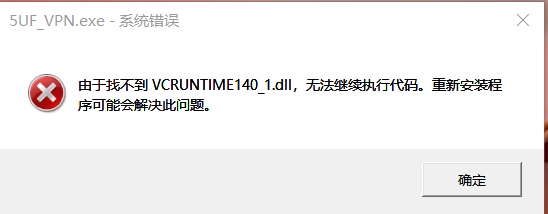
How to fix the missing VCRUNTIME140_1.dll error (for 5UF VPN)
If 5UF VPN reports VCRUNTIME140_1.dll is missing, install the official Microsoft Visual C++ Redistributable below. Do not download DLL files from unofficial sites.
❗️Encountering This Error? Follow These Steps to Fix It
If you see the error message below, don’t worry. Simply follow the steps provided to resolve the issue quickly and easily.
✅ Step 1: Go to the Official Microsoft Download Page
? Visit this official link:
? https://learn.microsoft.com/zh-cn/cpp/windows/latest-supported-vc-redist?view=msvc-170
This page contains the latest supported Visual C++ Redistributable installers.
✅ Step 2: Download the Correct File for Your Device
Scroll down to the section:
“Visual C++ Redistributable v14"
Then download the version(s) based on your system:
| Your Device Type | File to Download | Description |
|---|---|---|
| ?️ 64-bit Windows | vc_redist.x64.exe | For most modern systems; includes x64 and ARM64 binaries |
| ? 32-bit Windows | vc_redist.x86.exe | Needed for older systems or some 32-bit apps |
✅ Tip: If you're not sure, install both files to ensure full compatibility.
✅ Step 3: Install the Redistributables
-
Run each.exefile you downloaded
-
Follow the installation prompts
-
Restart your computer once finished
✅ Step 4: Launch 5UF VPN Again
After restarting:
-
Double-click to launch the 5UF VPN client
-
The app should now start normally without any DLL errors
❌ Important Warning
Do not download DLL files from third-party websites — they may contain malware or be outdated.
Always use the official Microsoft source linked above.
Discover one of our latest client features — instantly test your internet speed and seamlessly explore IP addresses from around the world.
Check Your Wi-Fi Speed with Ease
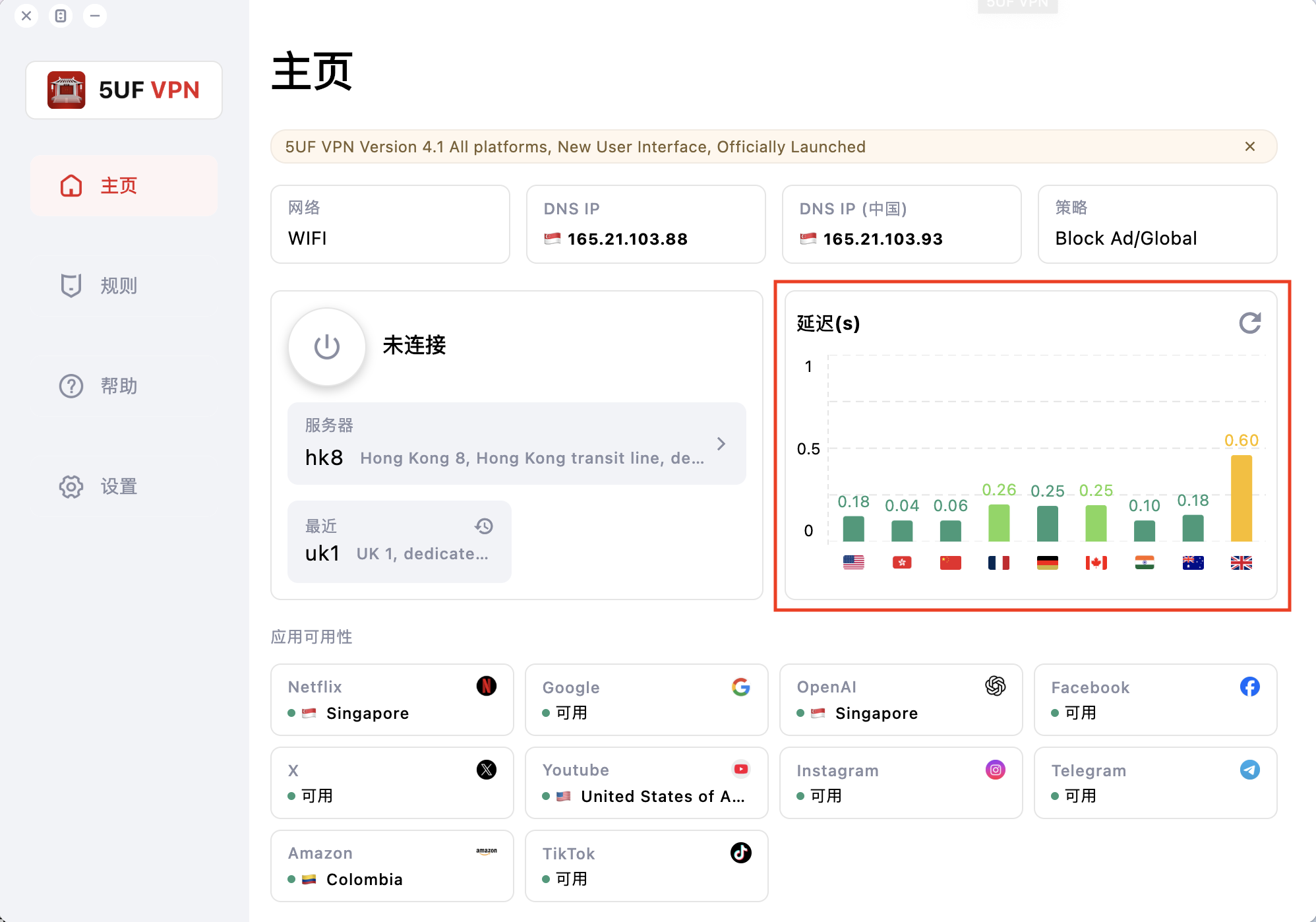
With our app, you can instantly monitor your personal Wi-Fi speed. On the right side of the screen, you’ll see real-time performance indicators showing how your connection performs across various locations worldwide.
-
Before VPN Connection:
If the indicators appear mostly in red or yellow, this means your base internet connection is slow. In such cases, connecting to the VPN will not increase your speed—it will reflect the limitations of your current network.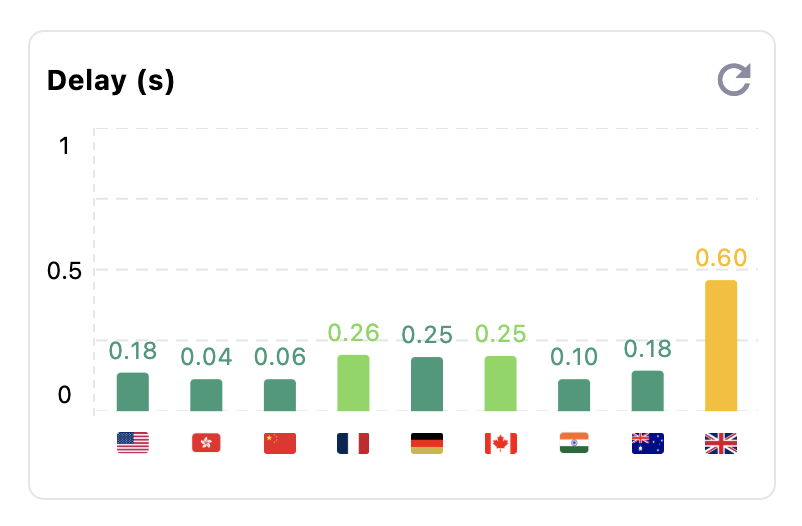
-
After VPN Connection:
Click on the bar graph to view your IP address and track how it changes as you connect to different VPN locations. This allows you to quickly identify whether any issues are related to your ISP or the VPN connection itself.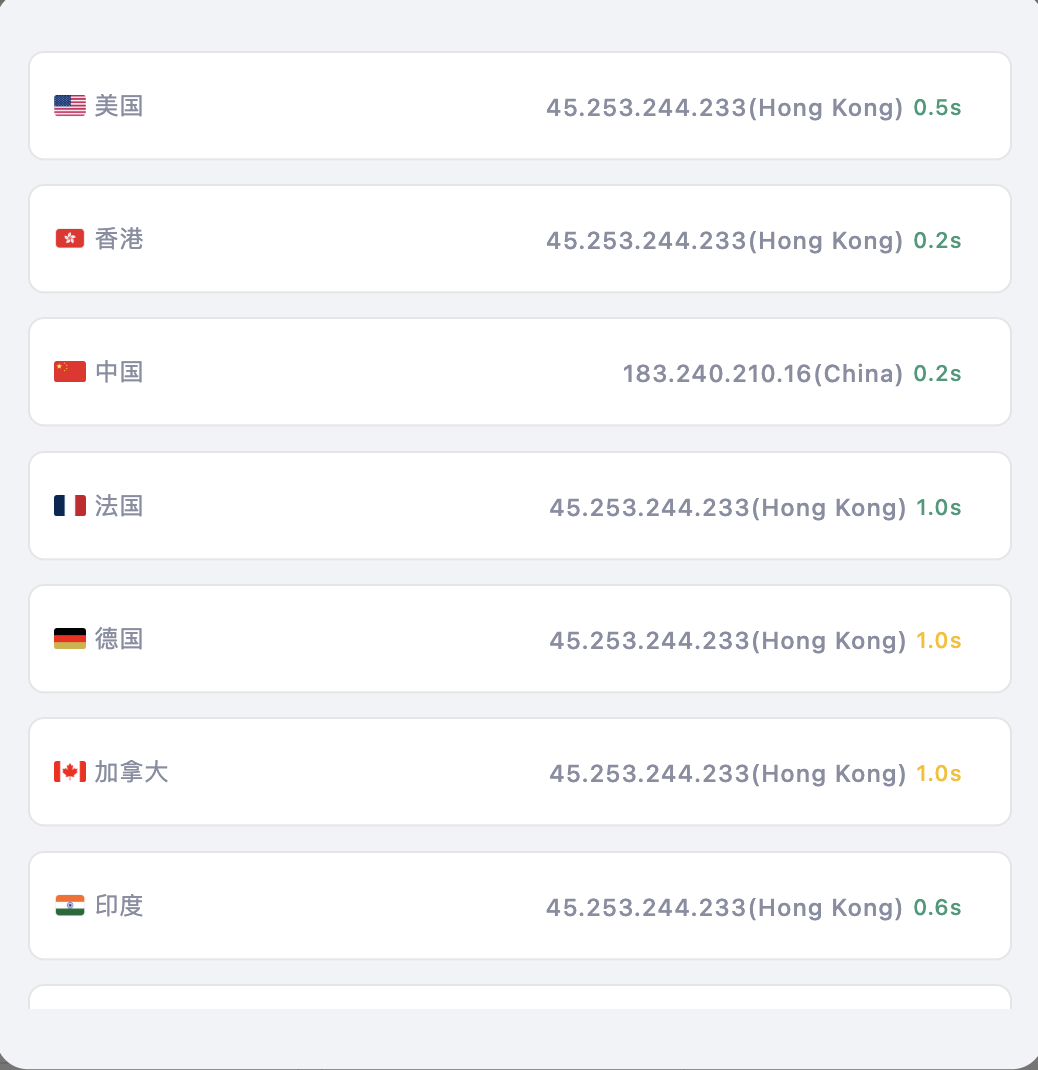
-
Refresh Any Location:
Simply tap on a location to refresh its status and get updated performance data.
How to add 5UF to Control Center (iOS – Edit)
Adding 5UF to Control Center (iOS – Edit)
The following procedure outlines how to add the 5UF application to your Control Center, enabling immediate VPN activation directly from the system interface.
Step 1 — Access the Control Panel
Swipe downward from the top-right corner of the display to reveal the Control Center.
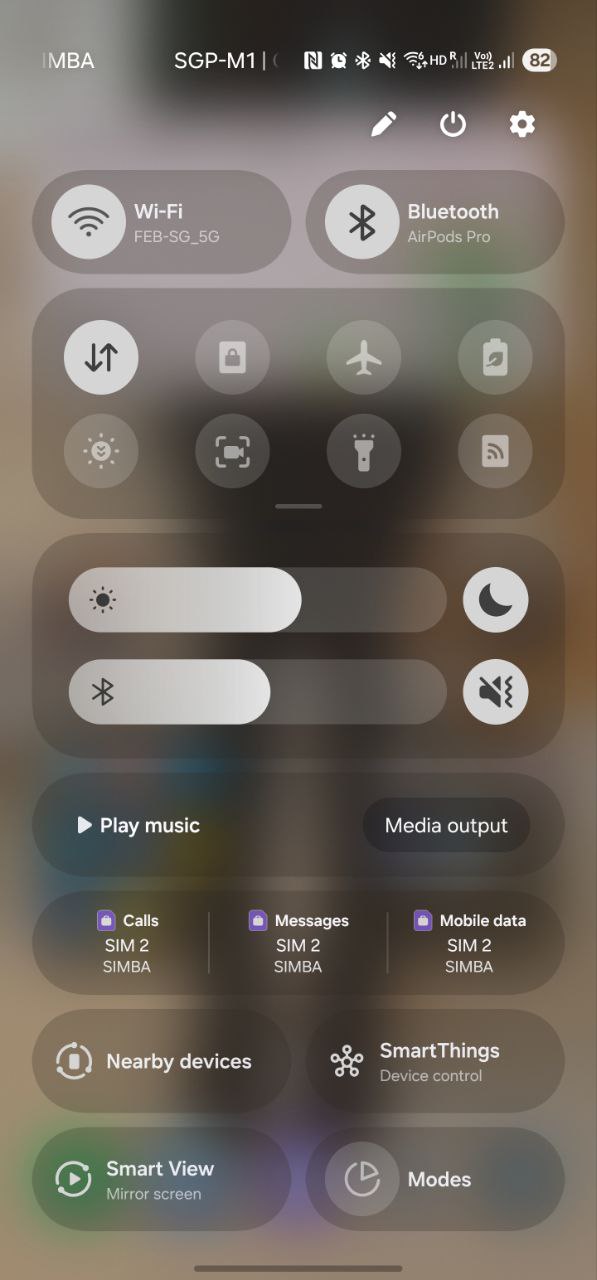
Step 2 — Enter Edit Mode
Click the edit button on the top right corner of the screen to enter edit mode.
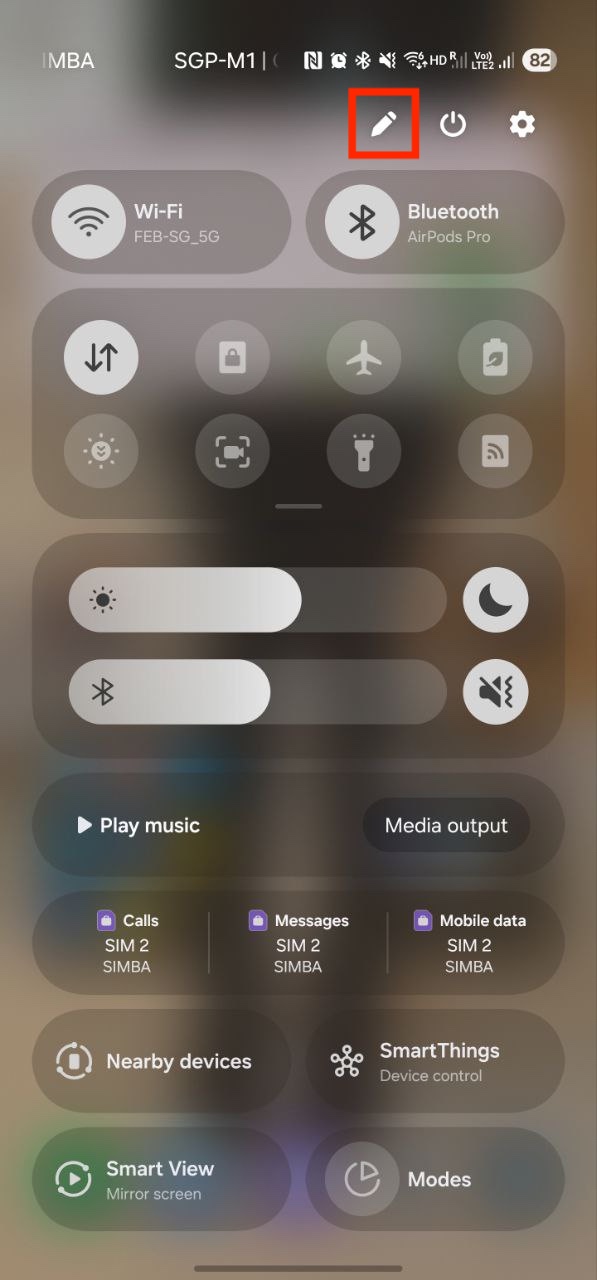
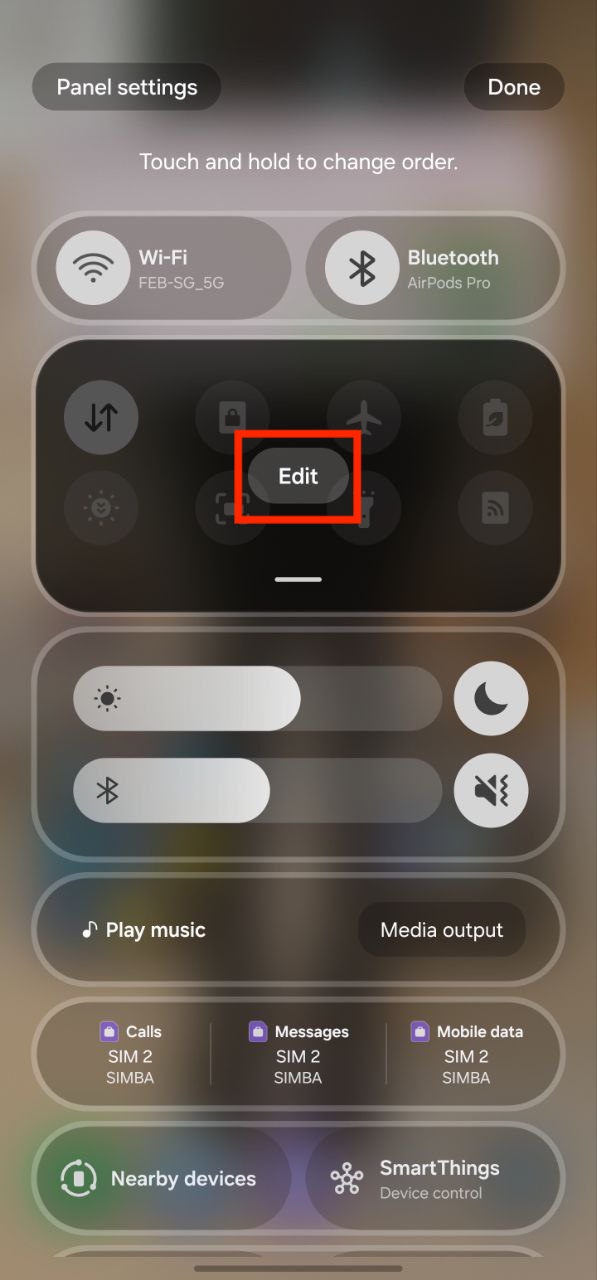
Step 3 — Add the 5UF Control
Select the 5UF application from the available buttons at the bottom of the screen to add it to the control panel.
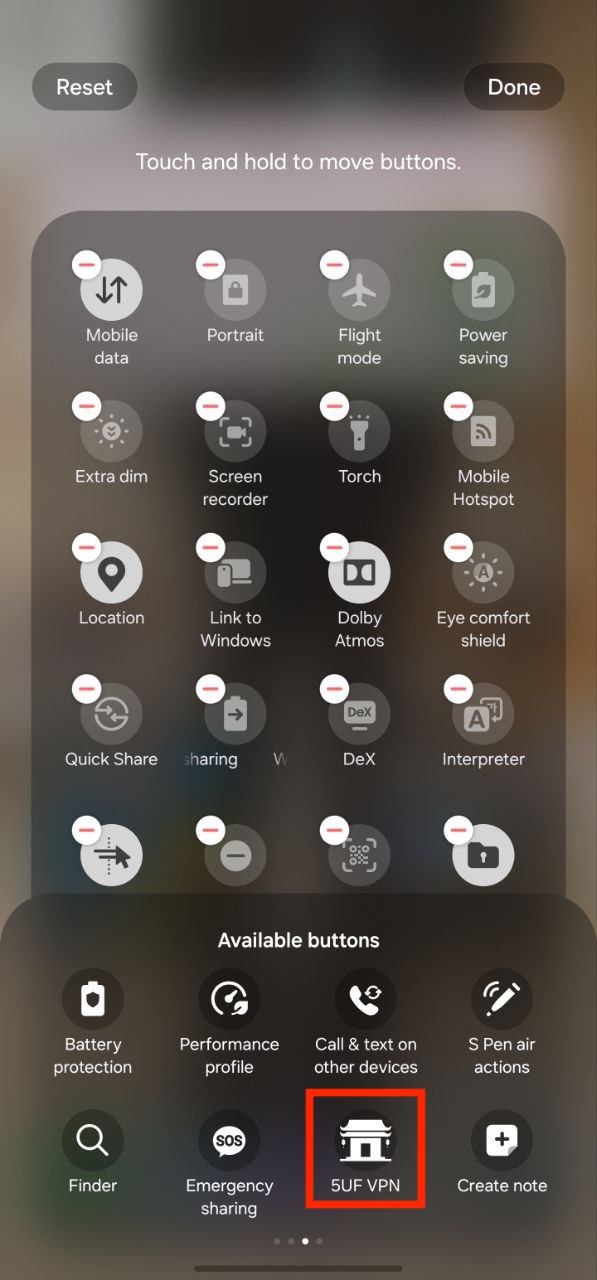
Completion
Once the control has been added, the 5UF VPN can be activated instantly by tapping the 5UF icon within the control panel.
How to add 5UF to Control Center (iOS – Add Control)
Adding 5UF to Control Center (iOS – Add Control)
The following procedure outlines how to add the 5UF application to your Control Center, enabling immediate VPN activation directly from the system interface.
Step 1 — Access the Control Panel
Swipe downward from the top-right corner of the display to reveal the Control Center.
Step 2 — Enter Edit Mode
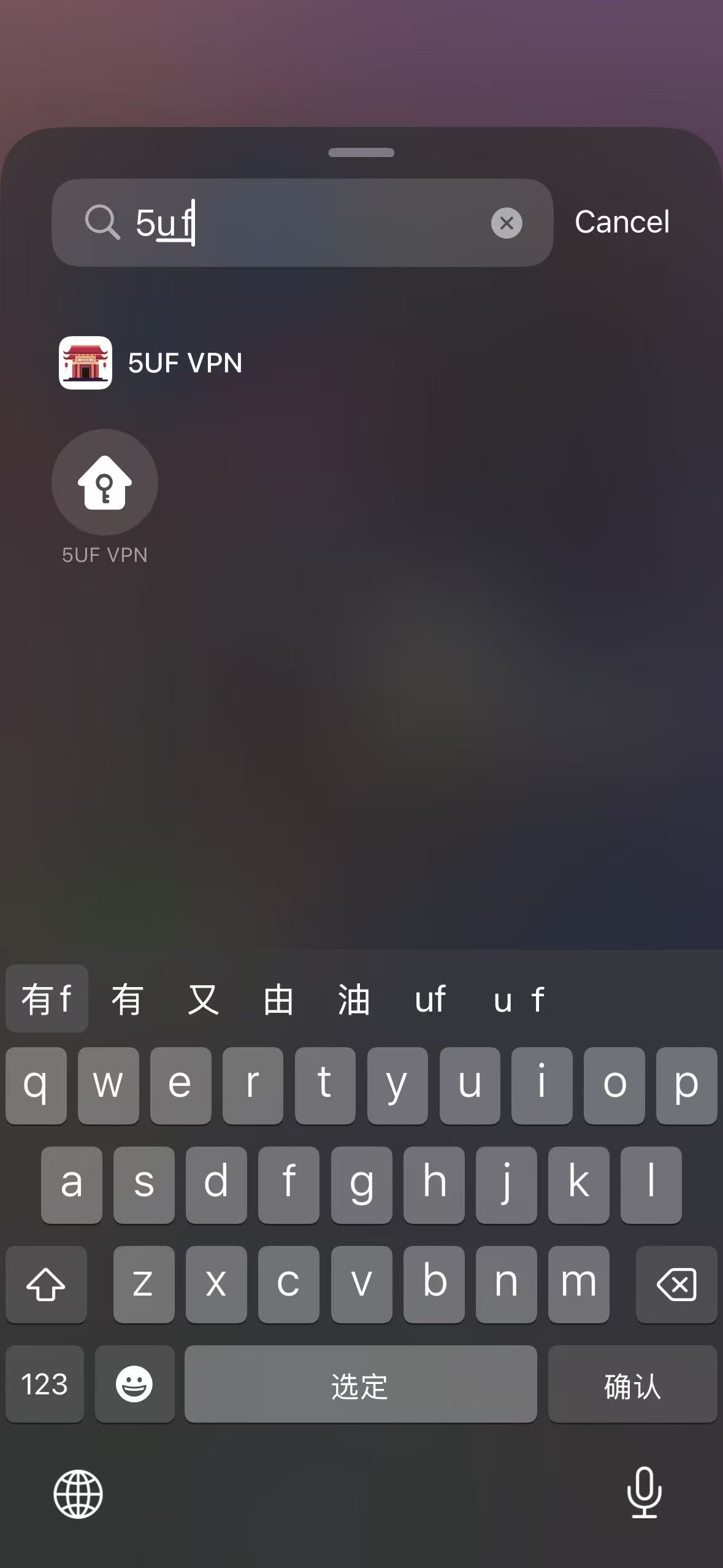
Press and hold any unoccupied area within the control panel, then select “Add a Control” from the options displayed at the bottom of the screen.
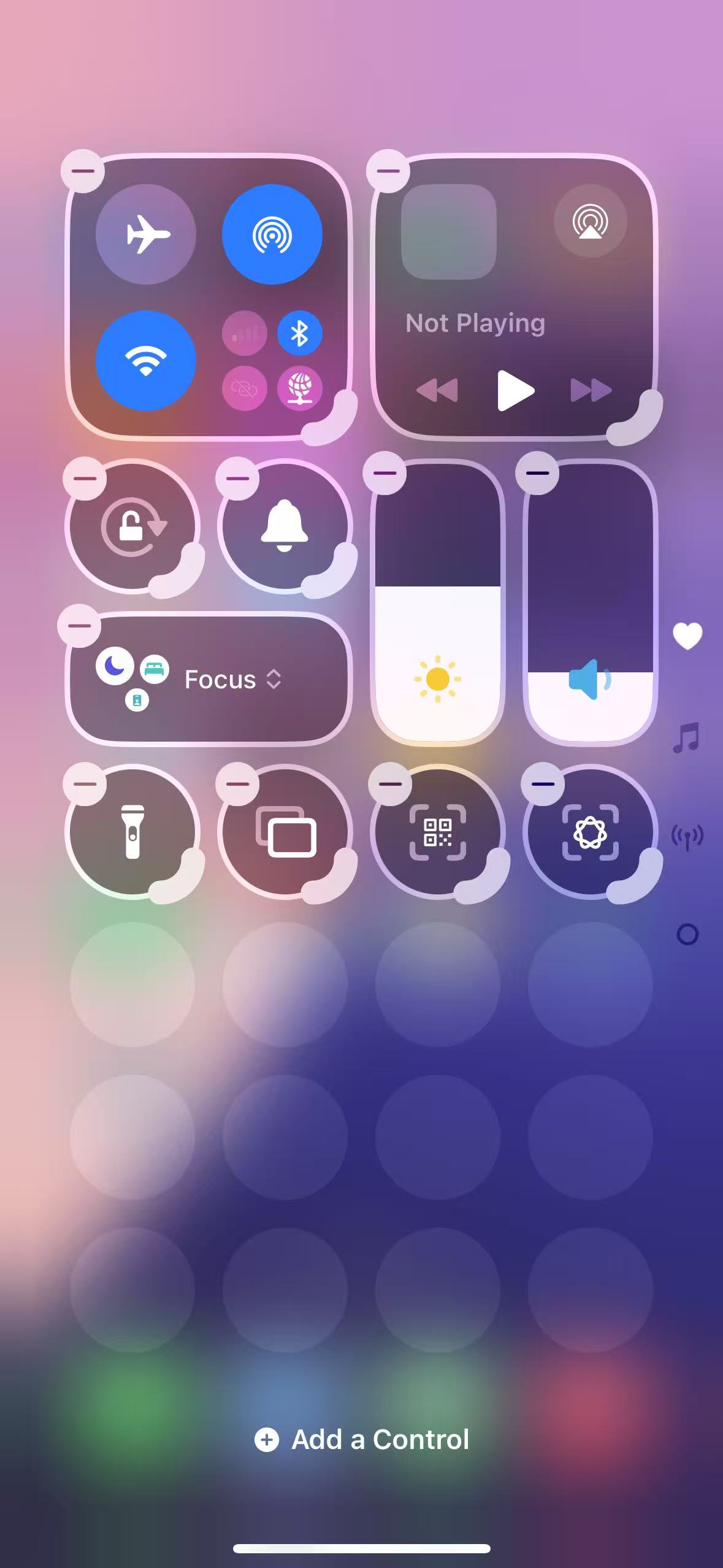
Step 3 — Add the 5UF Control
In the search field located at the top of the interface, type “5UF”.
Select the 5UF application from the search results to add it to the control panel.
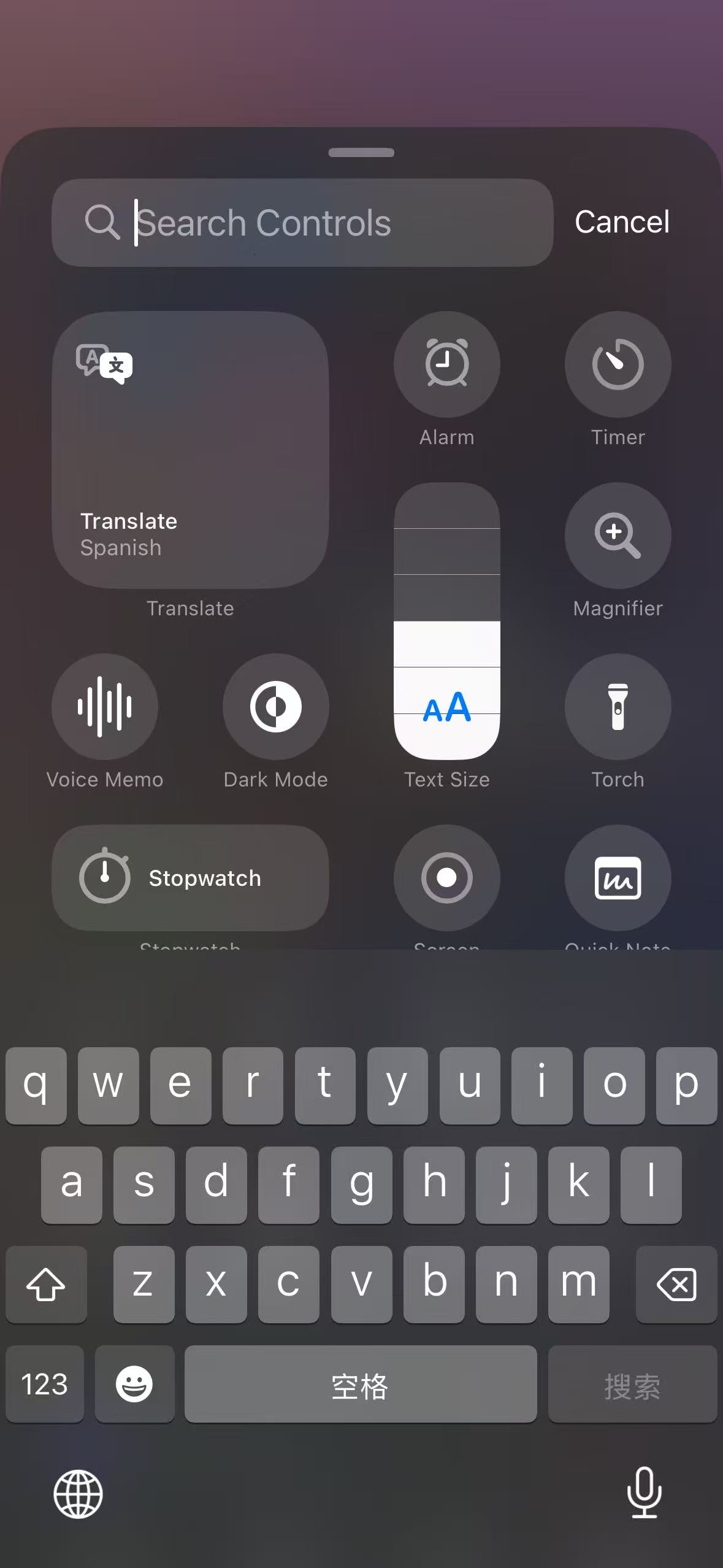
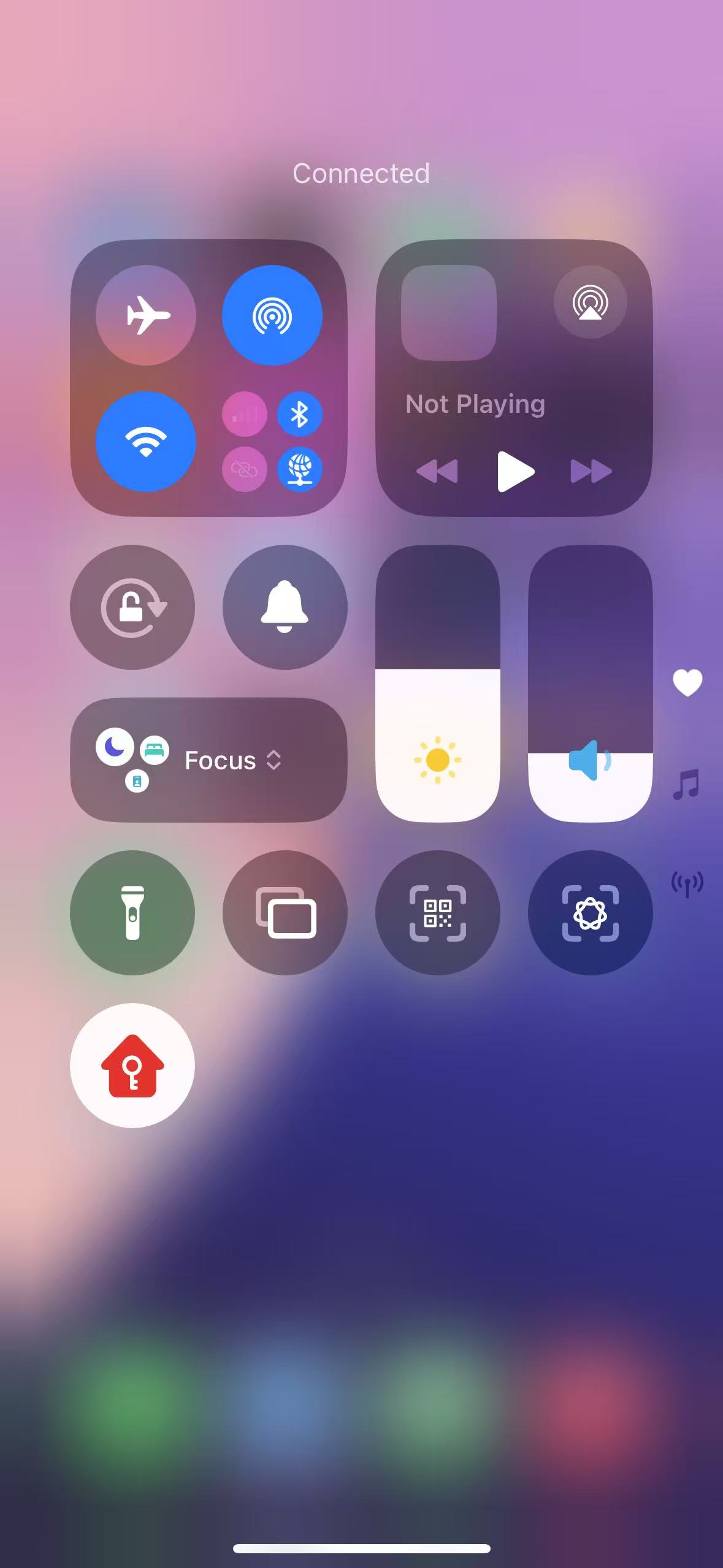
Completion
Once the control has been added, the 5UF VPN can be activated instantly by tapping the 5UF icon within the control panel.
What is the difference between Global mode and Partial mode?
In 5UF VPN, Global mode and Partial mode describe how much of your traffic goes through the VPN.
Global mode:
- Most system traffic goes through the VPN.
- Good for users who want a more consistent VPN route.
- Also more suitable for apps that do not support proxy mode well.
Partial mode:
- Only selected websites, apps, or rule-based traffic goes through the VPN.
- Other traffic continues to use the local network directly.
- Useful when you only want specific traffic to use the VPN.
How should you choose?
- If you are not sure, Global mode is usually the simpler starting point.
- If you only want a small part of traffic to use the VPN, choose Partial mode.
The naming may vary slightly on different platforms, but the core idea is the same.
How to start VPN automatically after login
If you want VPN to open automatically after you sign in to your computer, use the system's built-in startup settings.
Recommendation: use the latest 5UF VPN app together with the operating system's auto-start feature. This is more stable than older client-based solutions.
Windows:
- Add the 5UF app to your startup items.
- For more reliable startup behavior, run it with administrator permission if needed.
macOS:
- Add the 5UF app to Login Items in System Settings.
- This allows the app to start automatically after you sign in.
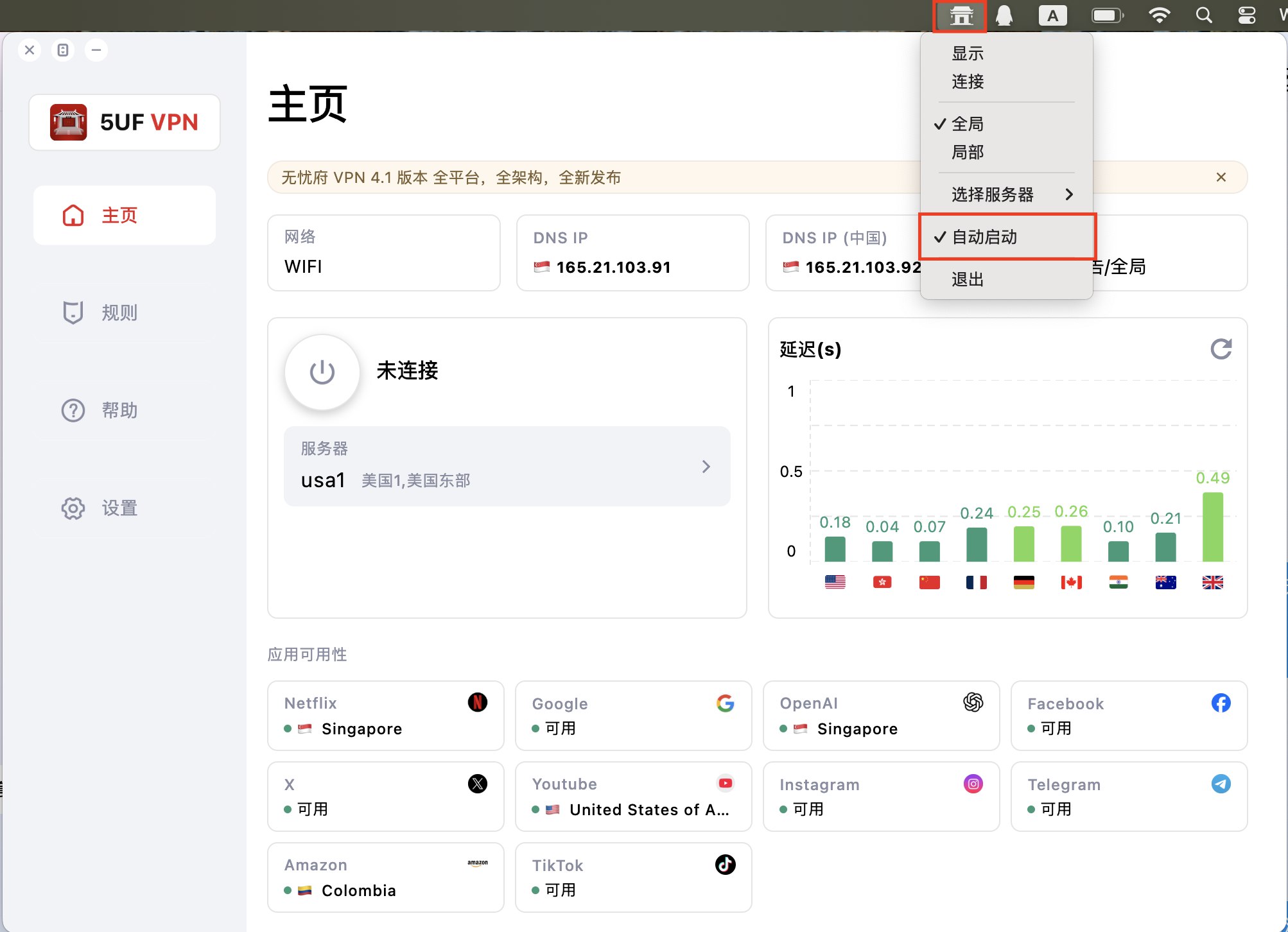
If you also want it to connect automatically after launch, make sure the related in-app option is enabled.
How to open 5UF VPN automatically at login (Windows)
Windows Setup Instructions for 5UF VPN Auto-Launch
Follow the steps below to configure 5UF VPN to start automatically when you log into your Windows account:
Step 1: Open the Run Dialog
Press the Windows + R keys simultaneously to open the Run dialog box.
Step 2: Access the Startup Folder
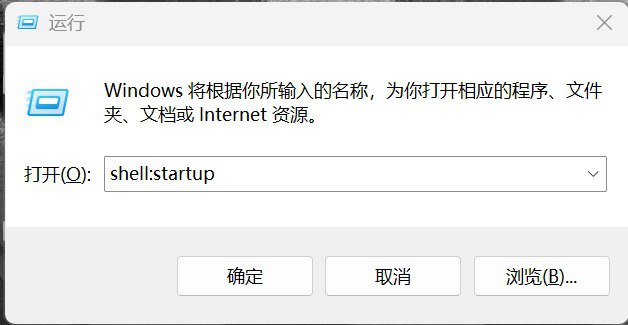
Type the following command into the Run box and press Enter:
shell:startup
This will open the Startup folder where programs that launch at login are stored.
Step 3: Add 5UF VPN to Startup
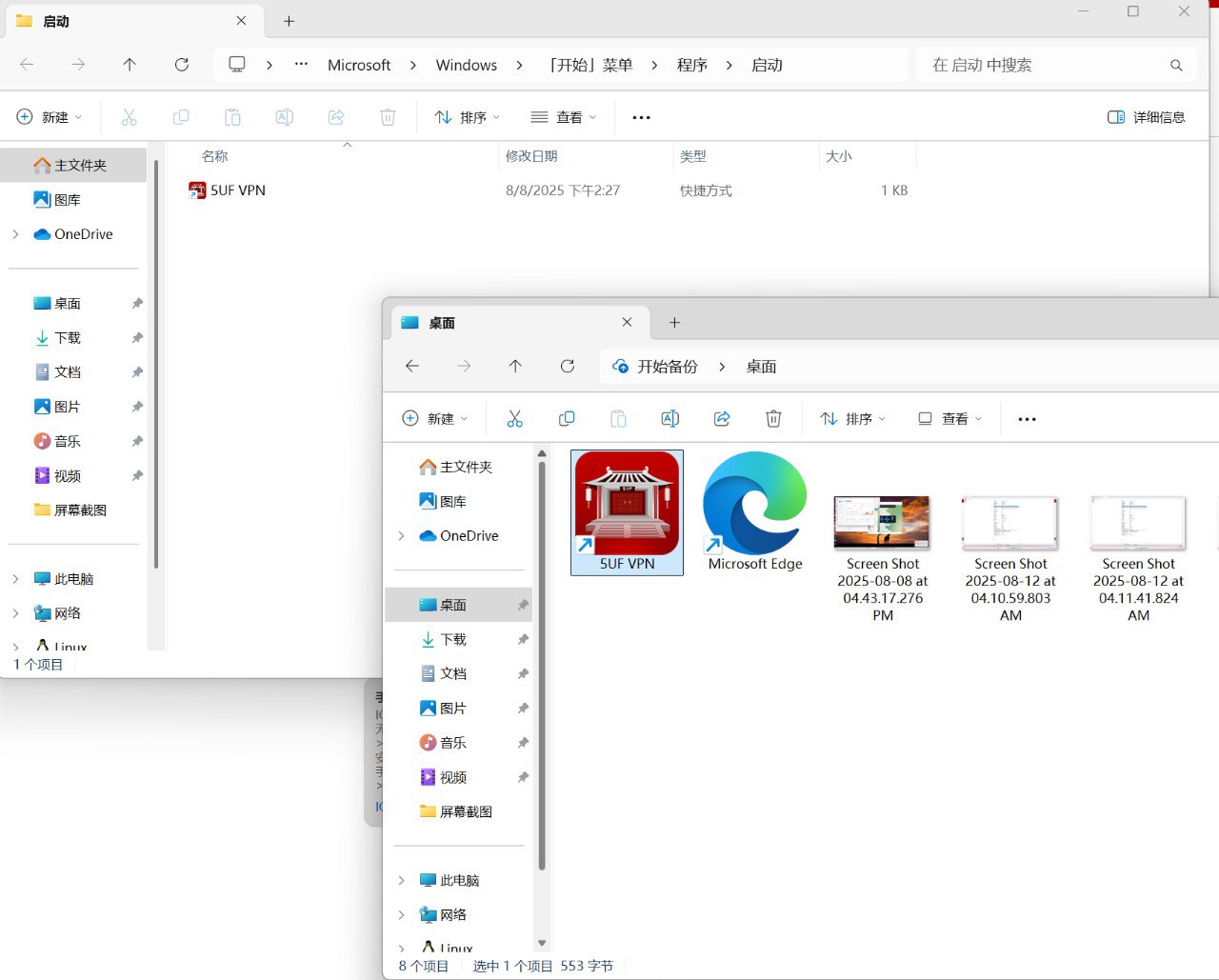
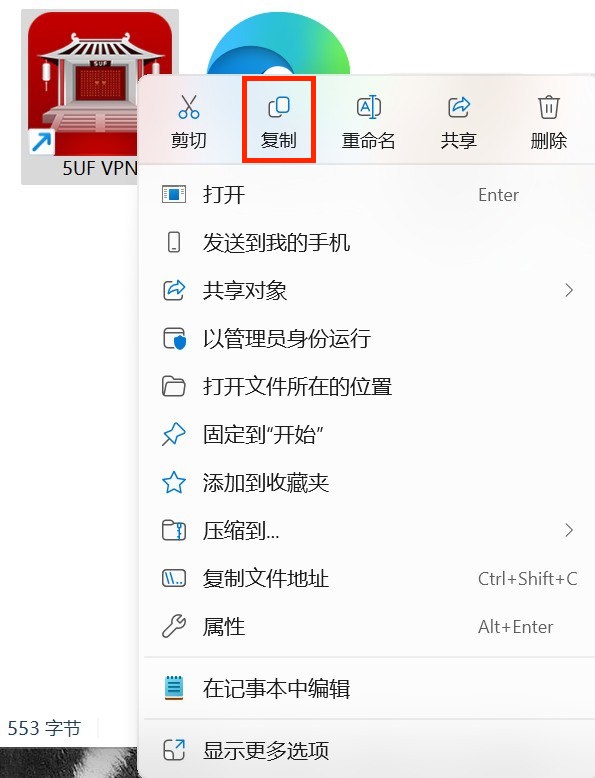
Locate the 5UF VPN application executable or its shortcut on your computer.
Drag and drop the 5UF VPN shortcut into the Startup folder window. This action ensures the app will automatically launch every time you sign in.
Additional Tips:
-
If you do not have a shortcut, right-click the 5UF VPN.exe file and select Create shortcut before moving it to the Startup folder.
-
To remove the app from startup, simply delete the shortcut from this folder.
How to open 5UF VPN automatically at login (macOS)
Mac Setup Instructions
Method 1: Using the Dock
-
Launch 5UF VPN.
-
In the Dock, right-click (or Control-click) the 5UF VPN icon.
-
Hover over Options and select Open at Login.
Launch 5UF VPN.
In the Dock, right-click (or Control-click) the 5UF VPN icon.
Hover over Options and select Open at Login.
Method 2: Using System Settings
-
Open System Settings → General → Login Items & Extensions.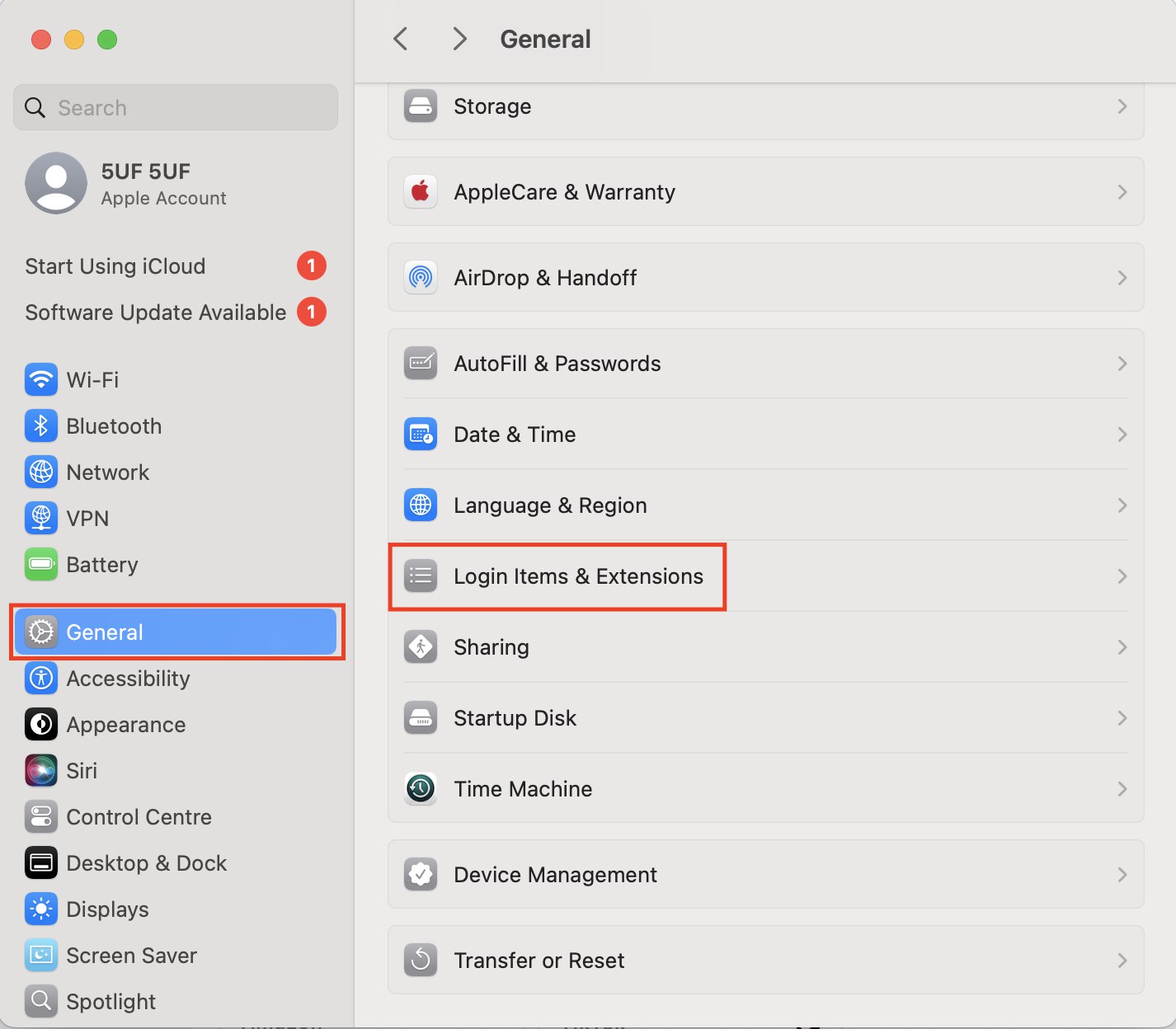
-
Click the + icon.
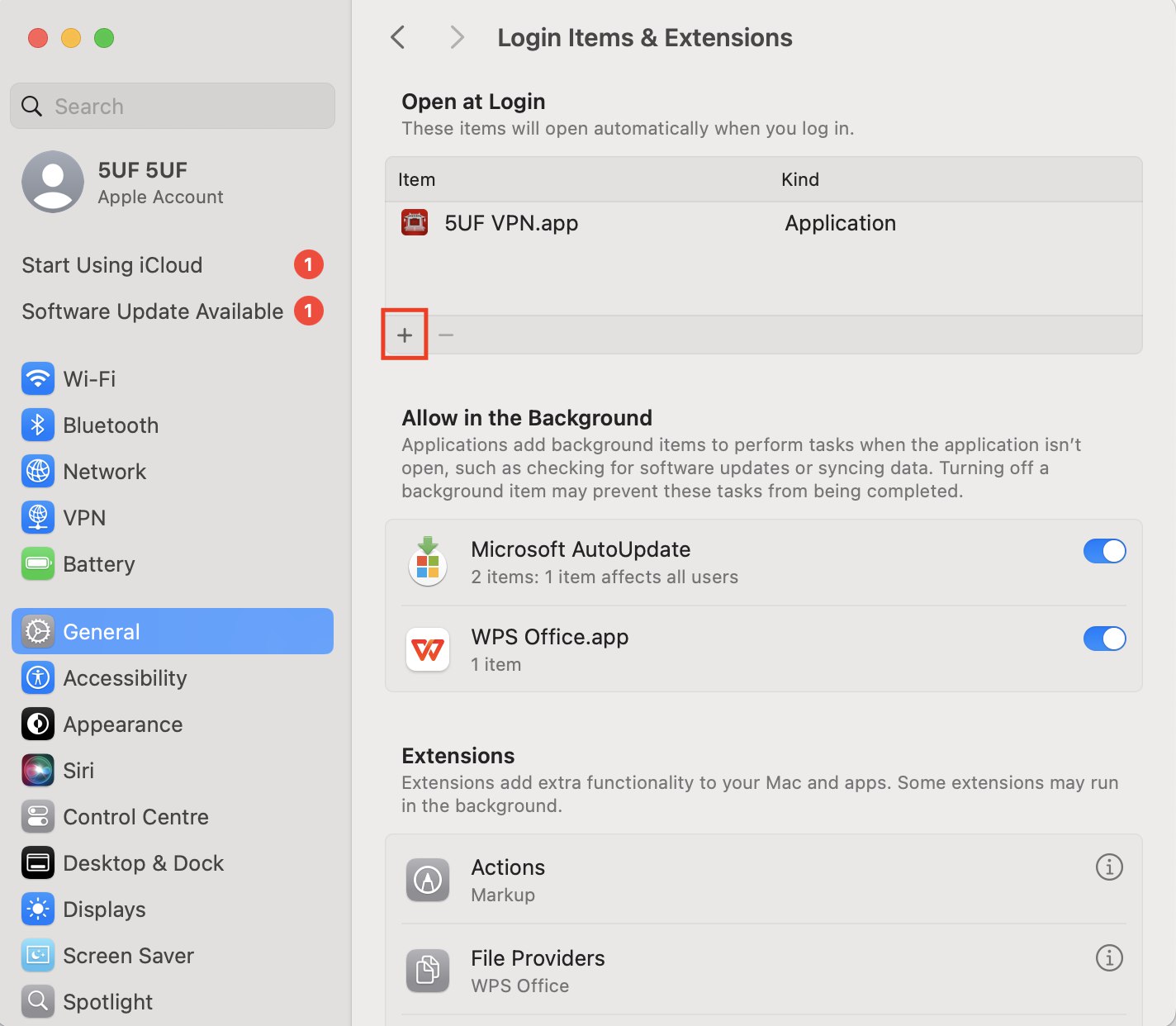
-
Select Applications.
-
Locate and select 5UF VPN.app.
-
Click Open to add it to your startup applications.
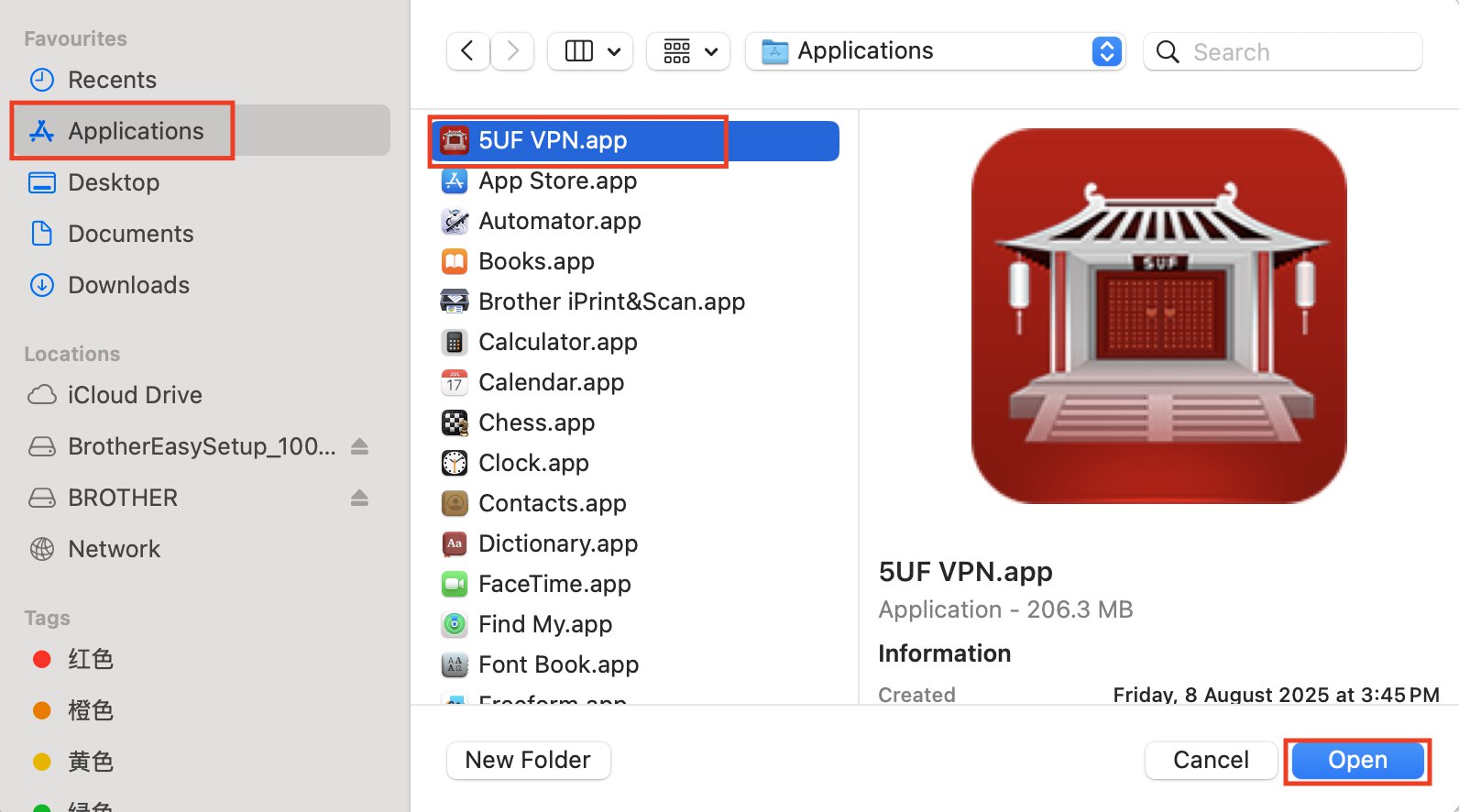
Open System Settings → General → Login Items & Extensions.
Click the + icon.
Select Applications.
Locate and select 5UF VPN.app.
Click Open to add it to your startup applications.
-
1 month · Unlimited Traffic
Standard rate
Supports 1 device online; you can buy more connections
$8.39 USD
-
6 months · Unlimited Traffic
20% off
Supports 1 device online; you can buy more connections
Pay for 4.8 months, get 6 months (save 1.2 months)
$40.28 USD
-
1 year · Unlimited Traffic
40% off
Supports 1 device online; you can buy more connections
Pay for 7.2 months, get 12 months (save 4.8 months)
$60.42 USD
News
-
Mar 245UF VPN iOS 9.2 Released: Fixes Critical Connection Performance Issue
-
Mar 21English|5UF VPN Browser Extension v4.2 Release Notes
-
Mar 125UF VPN Completes Full Platform Update-New In-App Ticket Support System Now Available Across All Platforms
-
Mar 12Official Website Redesign for 2026
-
Dec 115UF 5.3 Update — Essential Bug Fixes Across Windows, Mac, Linux, and Android!
-
Dec 10🎉 5UF VPN – 15th Anniversary Special Announcement


