


FAQ
How to confirm which Linux file is suitable for you 
Step 1: Identify Your Linux Distribution and System Architecture
-
Determine Your Linux Distribution
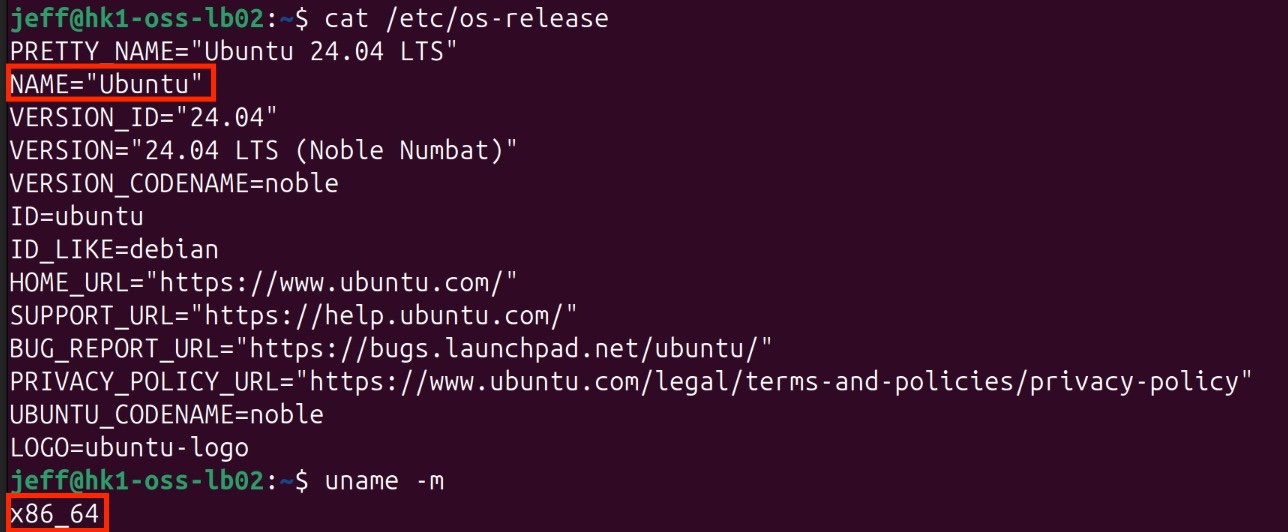
Open the terminal and execute:
cat /etc/os-release
This displays information about your Linux distribution.
-
Check Your System Architecture
Run:
uname -m
-
Output x86_64: your system uses a 64-bit Intel/AMD processor — download linux-amd64 packages.
-
Output aarch64: your system uses a 64-bit ARM processor — download linux-arm64 packages.
Step 2: Access the Download Page
Visit https://www.5ufclub.com/news/vpn/id/11168/
Step 3: Select and Download the Appropriate Linux Package
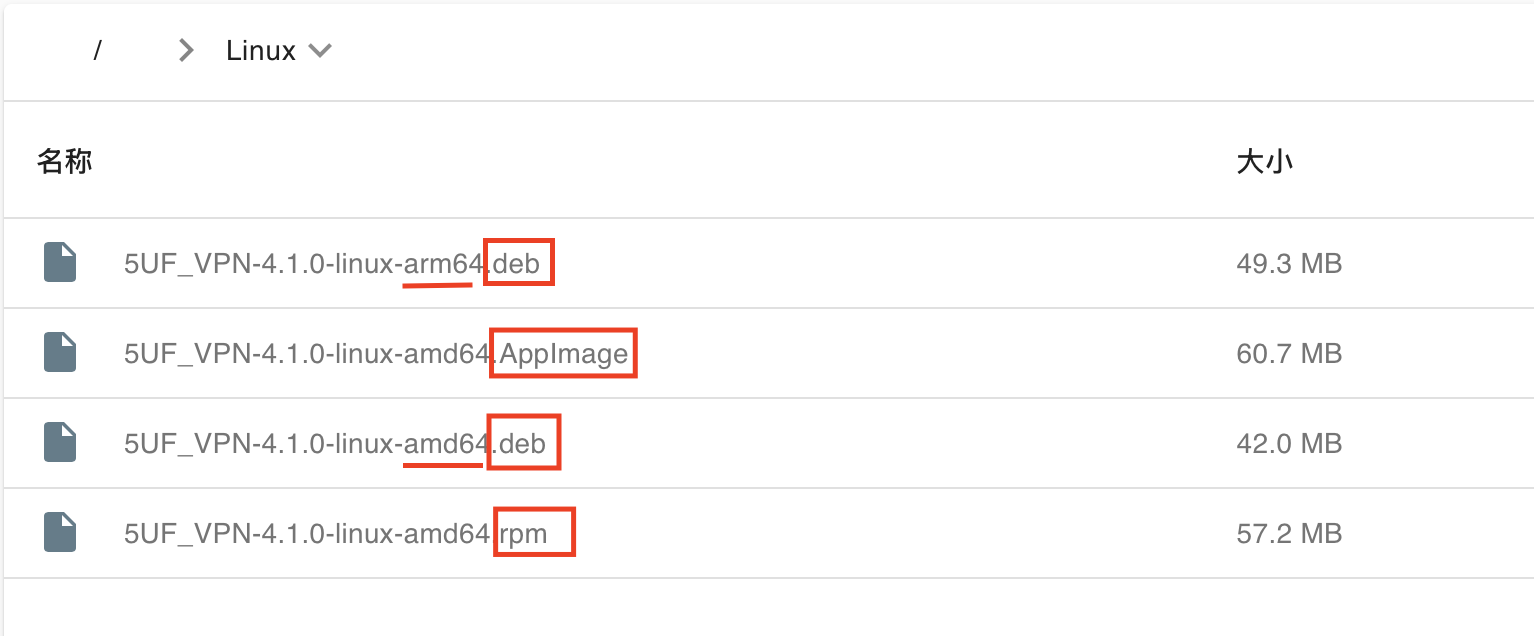
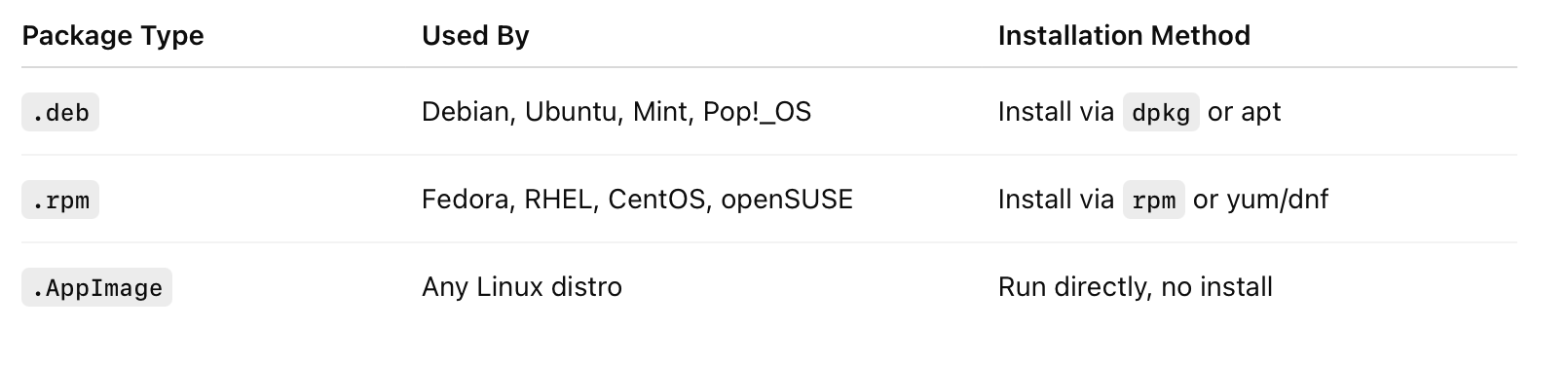
On the website, choose Linux as your platform. Review the available package formats — .deb, .rpm, .appimage — and select the one compatible with your Linux distribution and preference. Then, download the package matching your system architecture (amd64 or arm64).
How to confirm your Windows processor
Step 1: Verify Your Processor Architecture
For Windows Users
-
Open System Information
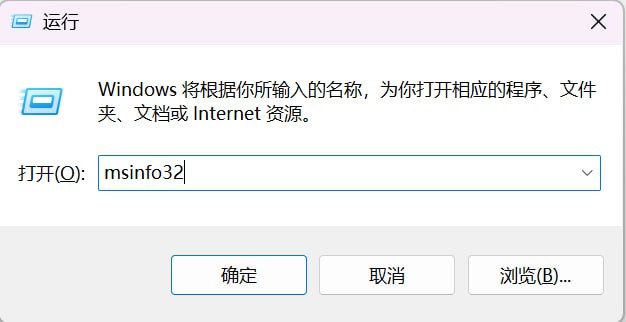
Press Windows + R, type msinfo32, and hit Enter.
-
Check System Type
-
If System Type shows “x64-based PC”, your processor supports AMD64 (x86-64) and is compatible with the standard Windows AMD64 version.
-
If System Type shows “ARM-based PC”, your device runs on an ARM processor and supports Windows ARM64.

Step 2: Access the Download Page
Open System Information
Press Windows + R, type msinfo32, and hit Enter.
Check System Type
If System Type shows “x64-based PC”, your processor supports AMD64 (x86-64) and is compatible with the standard Windows AMD64 version.
If System Type shows “ARM-based PC”, your device runs on an ARM processor and supports Windows ARM64.
Visit: https://www.5ufclub.com/news/vpn/id/11168/
Step 3: Select Your Platform
On the website, select Windows from the list of platforms.
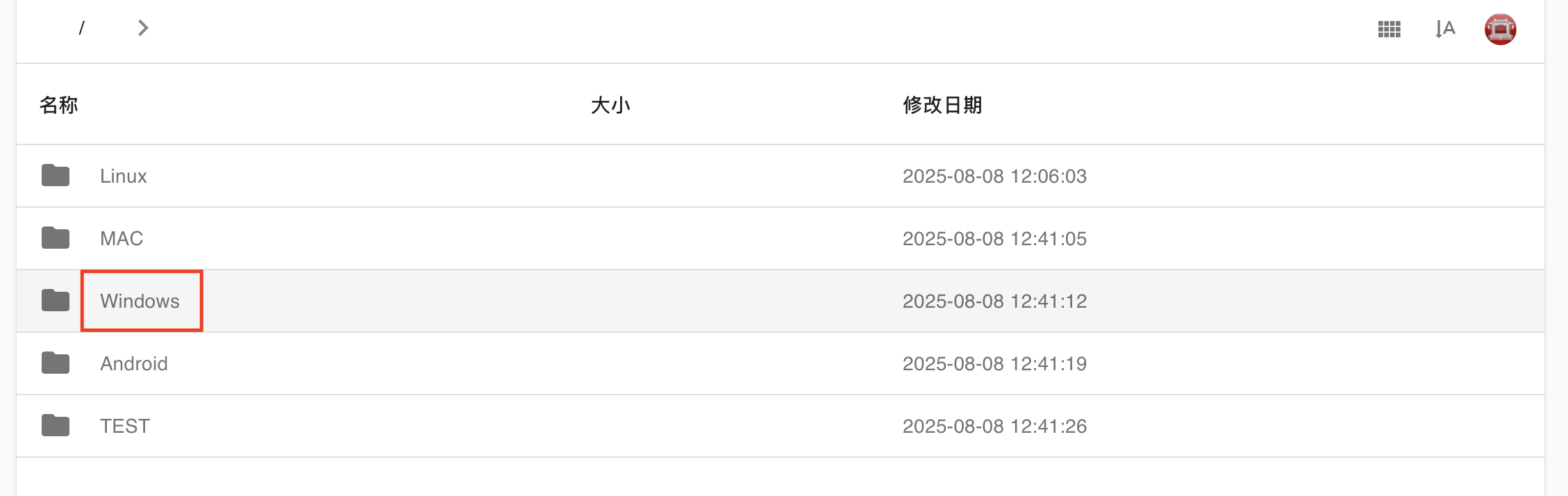
Step 4: Download the Correct Version
-
For x64-based PCs, download the AMD64 version.
-
For ARM-based PCs, download the ARM64 version.

How to confirm your Mac processor
Steps to Download the Correct Version for macOS
-
Determine Your Mac’s Processor Type
-
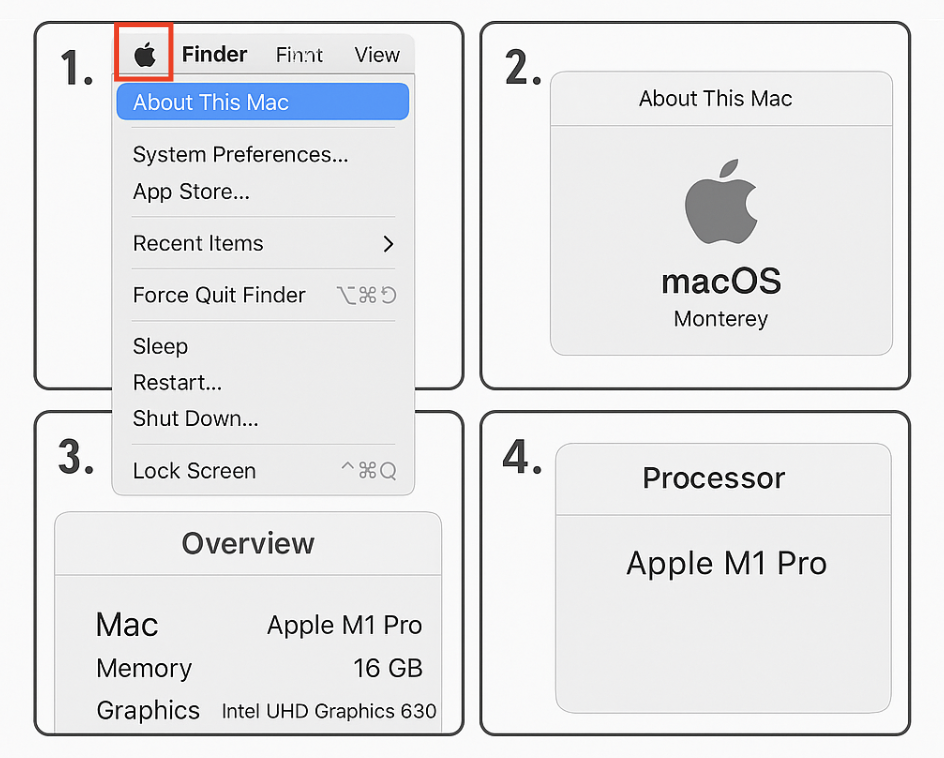
Click the Apple menu () in the top-left corner of your screen and select About This Mac.
-
Under Chip or Processor, identify whether your Mac uses Apple Silicon (e.g., M1, M2, M3) or Intel.
-
-
Access the Download Page
-
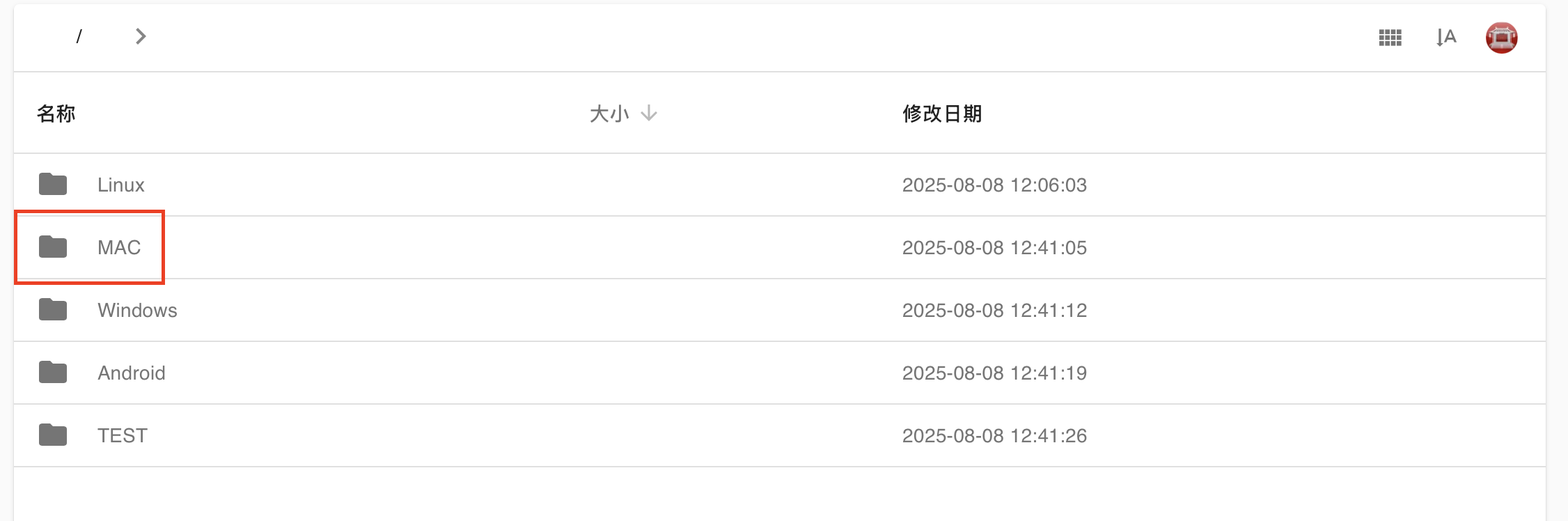
Select macOS as Your Platform
-
On the website, choose Mac from the list of available platforms.
-
-
Download the Appropriate Version
-
For Apple Silicon (M1, M2, M3) — select the ARM64 version.
-
For Intel-based Macs — select the Intel x86_64 version.

-
Why does the “unlimited data” plan still have a limit?
- Without limits, a few users may abuse the service (e.g. servers, heavy sharing), slowing others down.
- VPN servers cost bandwidth, which must be shared efficiently.
- Most “truly unlimited” VPNs silently limit users. We state it clearly.
Do I need a VPN when traveling to China? Can I use my international SIM card?
- Roaming is very expensive — often $10–15/day
- Speed is usually limited and may have daily caps
- Not suitable for long-term or high-volume use
- Buying a local SIM card (e.g. China Unicom, China Telecom)
- Using a secure VPN to bypass the GFW
- Search: Google, Bing (EN), DuckDuckGo
- Social: Facebook, Instagram, Twitter, Threads, Snapchat, X
- Messaging: WhatsApp, Telegram, Signal, Messenger, Line
- Streaming: YouTube, Twitch, Spotify, Netflix (partially)
- Cloud: Google Drive, Dropbox, OneDrive, iCloud (partly)
- Email: Gmail, ProtonMail, Outlook (unstable)
- News: BBC, CNN, NYT, Wikipedia (EN)
What is SNI spoofing and why do I need it?
SNI spoofing replaces the actual domain with a “safe-looking” one (like bing.com) during TLS handshake to bypass domain-based restrictions. Useful when VPN access is blocked.
Does SNI spoofing work in all network environments?
Not always. Some advanced networks inspect TLS fingerprints or certificate data. SNI spoofing improves success rates but is not guaranteed.
Can SNI spoofing help save mobile data?
Some mobile carriers offer zero-rated data for specific domains (e.g., music or video apps). SNI spoofing may help you benefit from these packages.
Can I choose a custom spoofed domain?
YES.
Will SNI spoofing affect the VPN server I’m connecting to?
No. This only affects the domain name in the handshake phase. Your real traffic still goes to the selected VPN server.
What is SNI spoofing and why do I need it?
SNI Spoofing (Domain Disguise) Feature Guide
🛡️ SNI Spoofing (Domain Disguise) – Feature Overview
Where to find it:
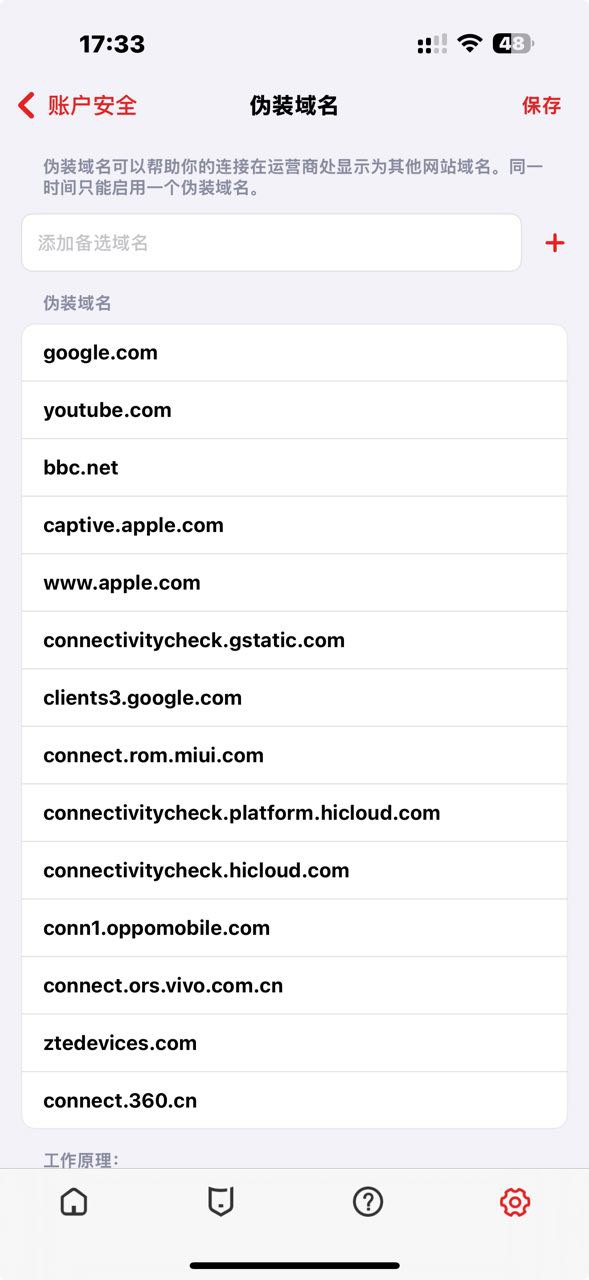
Settings → Account Security → Domain Spoofing
Supported Versions:
-
iOS 8.0 and above
-
Android 3.0 and above
🔍 What is SNI?
SNI (Server Name Indication) is part of the TLS/SSL protocol. When your device connects to a website using HTTPS, it sends the domain name in plaintext at the very beginning of the handshake.
This means that firewalls, network providers, or censorship systems can see which website you’re trying to visit, even if your connection is encrypted.
🧪 How SNI Spoofing Works
With SNI spoofing enabled, 5UF VPN replaces the real domain name (e.g., realvpn.example.com) with a harmless and widely accepted domain (e.g., bing.com, baidu.com) during the TLS handshake.
The goal is to deceive censorship or firewall systems that block access based on SNI data, allowing the connection to go through.
✅ This spoofing only affects the initial handshake. Your real VPN session and traffic are not affected or rerouted.
🌍 Typical Use Cases
|
Situation |
Recommended |
Description |
|---|---|---|
|
VPN access blocked in China |
✅ Yes |
Helps bypass domain-based GFW restrictions |
|
Public Wi-Fi in schools, offices, hotels |
✅ Yes |
Circumvents SNI-based restrictions |
|
Captive portals in airports or malls |
✅ Yes |
Tricks login systems into allowing access |
|
Mobile data plans with limited domains (e.g., music/video streaming) |
✅ Yes |
Mimics “zero-rated” domains to save bandwidth or avoid throttling |
|
Normal, unrestricted networks |
❌ Not needed |
Adds connection time without benefit |
⚠️ Important Notes
-
Recommended spoof domains include popular sites like baidu.com, bing.com, and apple.com
-
Not all protocols support SNI spoofing. For example, QUIC/HTTP/3 may not be compatible. Consider switching to TCP mode in Advanced Settings.
-
Some VPN servers may reject connections if the SNI domain does not match their TLS certificate. If connection fails, try turning the feature off and reconnect.
❓ Frequently Asked Questions (FAQ)
Q1: What is SNI spoofing and why do I need it?
SNI spoofing helps you bypass firewalls by replacing the domain name in your TLS handshake with a commonly allowed domain. This is useful when VPN connections are blocked by domain name.
Q2: Does this change the VPN server I’m connecting to?
No. The real connection still goes to the VPN server you selected. Only the domain used in the TLS handshake is disguised.
Q3: Can I choose a custom spoofed domain?
Yes. The system predefines some common domain names, such as the domain name used to detect available Wi-Fi links in IOS.
Q4: It doesn’t work on my school or office network. What should I try?
Try enabling TCP mode instead of UDP in Advanced Settings. Some networks block or inspect UDP packets more aggressively.
Q5: Can this help me use zero-rated data plans from my carrier (e.g., music streaming)?
Yes, in some cases. If your ISP allows free access to specific services by domain name, SNI spoofing can trick the system into treating your connection as part of that service.
Q6: Does SNI spoofing work in all cases?
No. Some networks perform deeper inspection or block based on other handshake details. SNI spoofing improves success rate but is not guaranteed in every environment.
No response when tapping Connect in the app
If nothing happens after you tap Connect, the system VPN permission may not have been created correctly, or the old local configuration may be damaged.
Try the following steps:
- Completely close the 5UF app.
- Open system settings and remove any old VPN profile or configuration.
- Open the 5UF app again, tap Connect, and allow the system to create the VPN.
- If you previously denied the permission, restart the device and try again.
- If it still does not work, update to the latest version of the app. Reinstall if necessary.
We recommend using the latest app instead of older clients. The latest version has better permission guidance and compatibility.
How Android use 5UF club V2rayNG

1.下载
从 Google Play 下载应用。
https://play.google.com/store/apps/details?id=com.v2ray.ang&hl=zh&pli=1
如果不能使用 Google Play,请手工下载:
https://github.com/2dust/v2rayNG/releases
备用下载地址:
“v2rayNG_1.9.43_arm64-v8a.apk”
Backup download 2
2.从网站复制订阅配置文件,导入到 APP 中,如下图:
https://www.5ufclub.com/xray_config
要选择 N2rayNG 专用的配置地址。
3.开始使用。
点击类似于“播放”这个按钮开始加速。如下图。
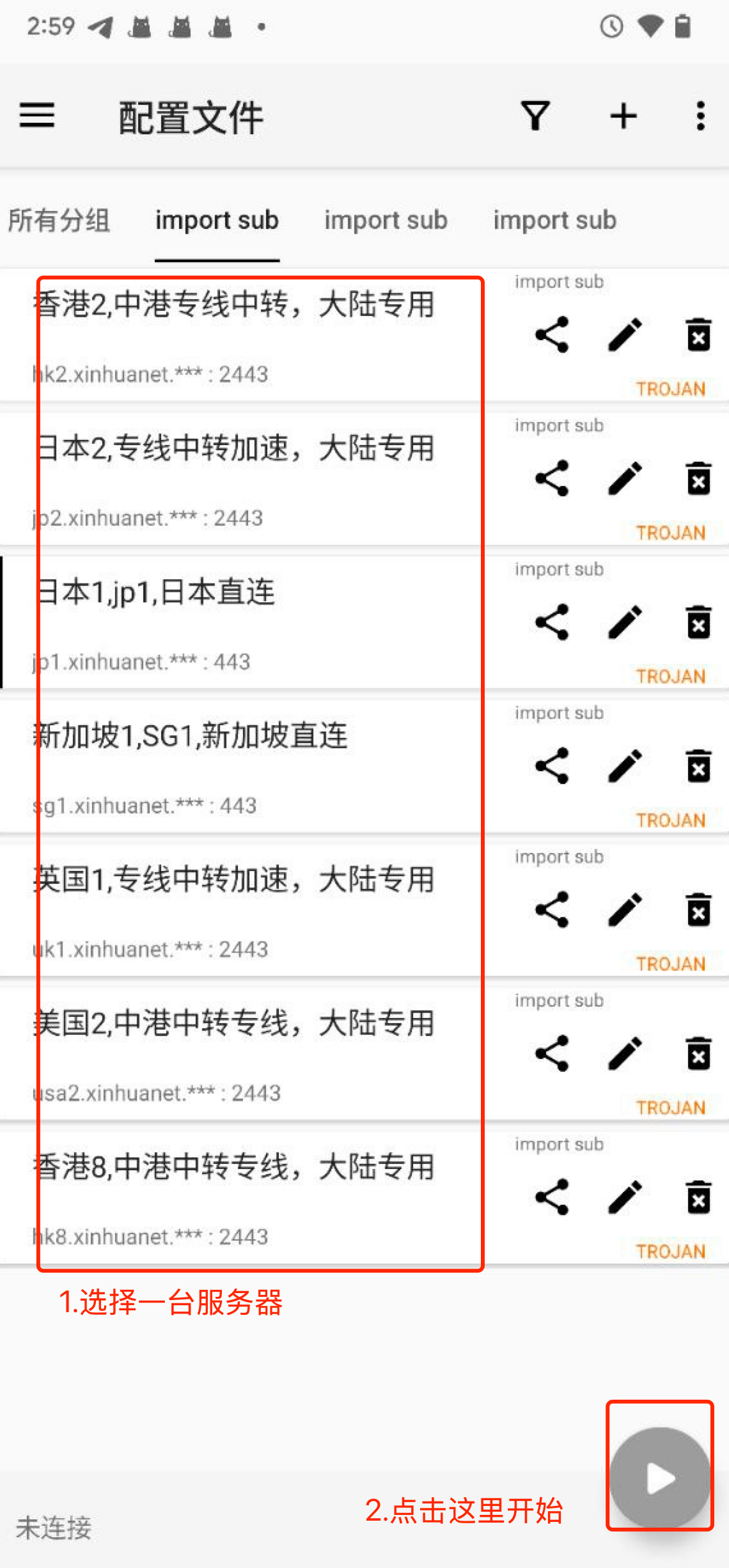
高级用法:
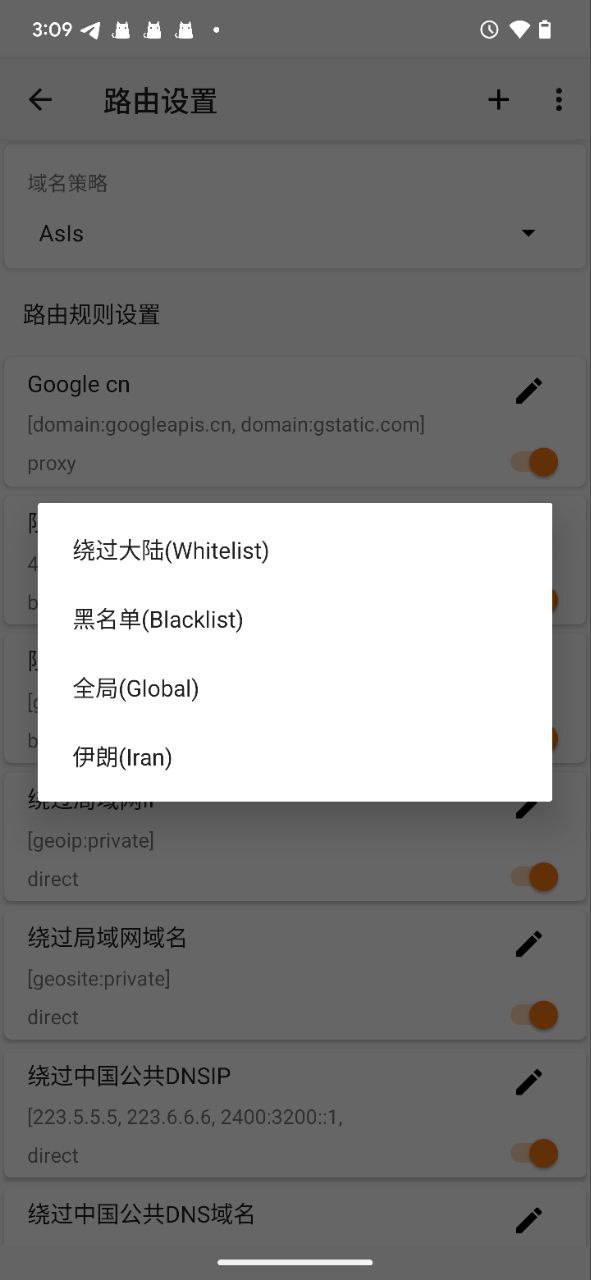
点击路由设置,更多(...)导入预定义规则集。
选择“绕过大陆”,可以配置中国大陆的通用规则,只加速国外的 IP,如下图。
How to use Trojan (XRay) with windows
1. 下载客户端并安装
Clash for Windows
https://dl.clashforwindows.org/releases/latest/Clash.for.Windows.Setup.0.20.39.exe
更多其它端也可以在这里找:
https://dl.clashforwindows.org/releases/latest/
备用下载点:
Clash.for.Windows.Setup.0.20.39.exe
2. 点击导入
从我们的网站上获取订阅地址
https://www.5ufclub.com/xray_config
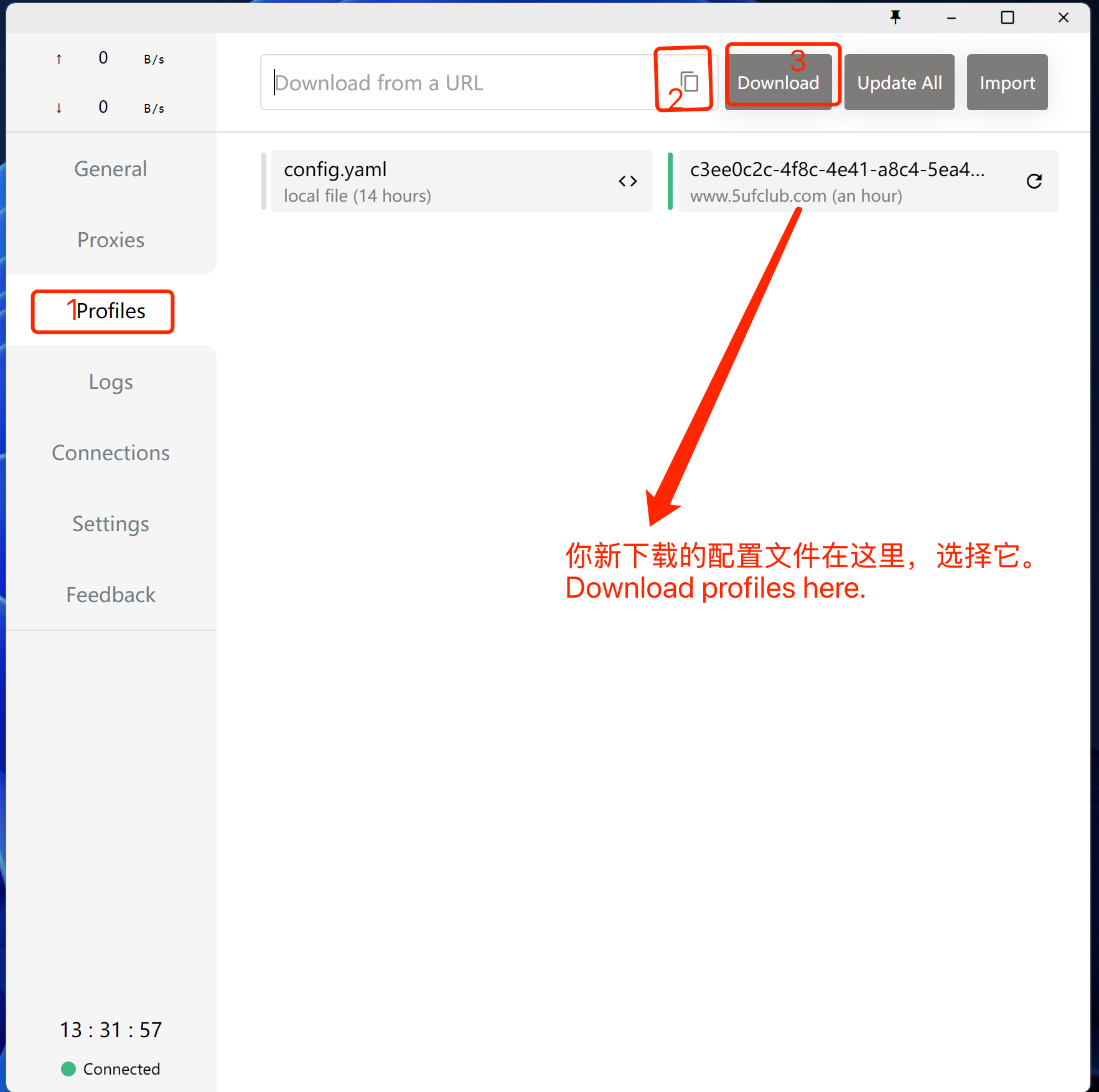
3. 使用
选择刚下载好的规则(如上图),选择好服务器(如下图),打开系统代理(下下图),开始使用。
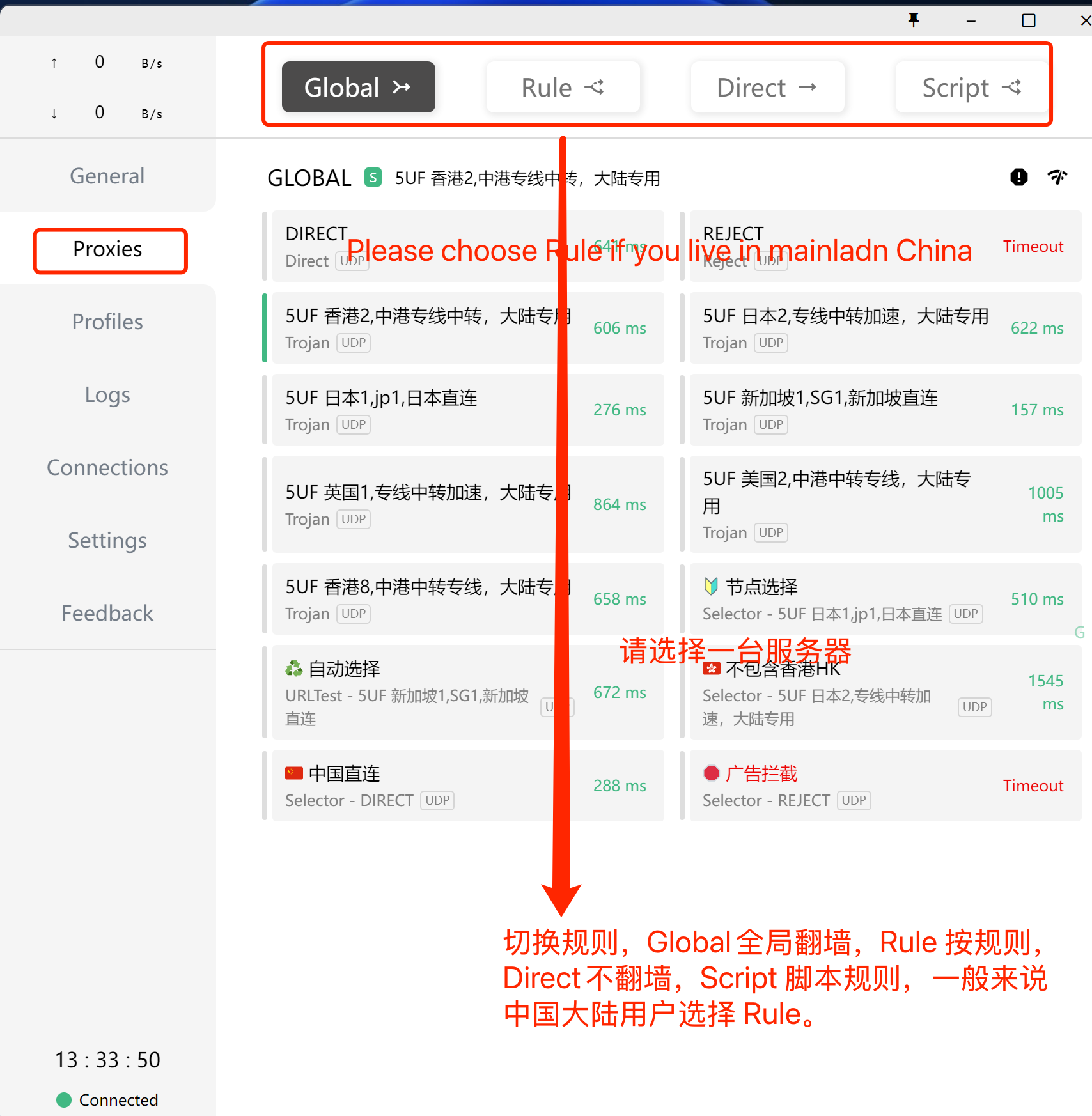
打开系统代理,如下图:
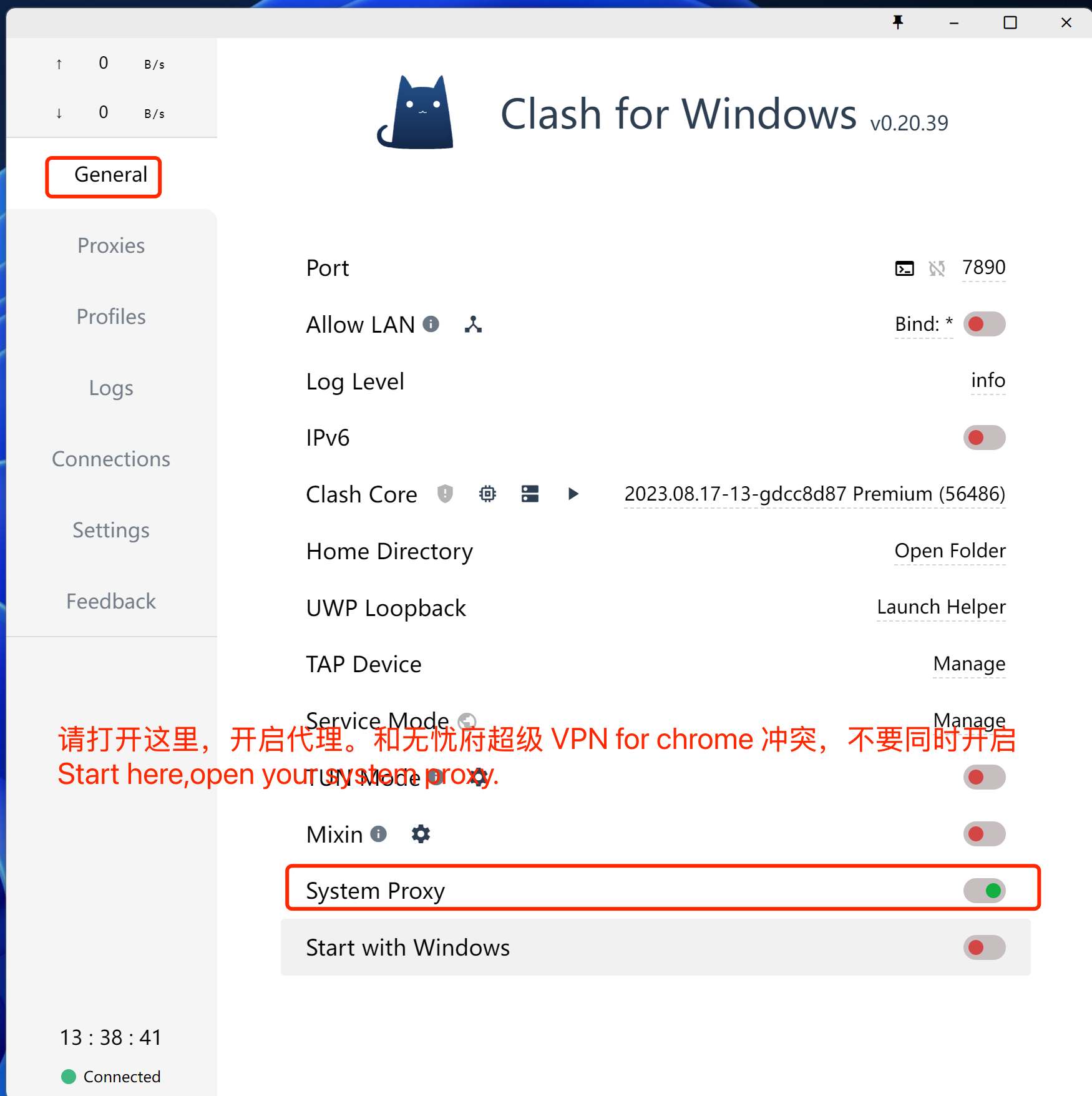
注意事项,如果你的浏览器同时使用无忧府超级 VPN for Chrome 插件时,这里的代理会失效,同理,其它代理类的软件都不能同时生效,你要先禁用插件,或者换一个浏览器。
打开网址:https://ip111.cn
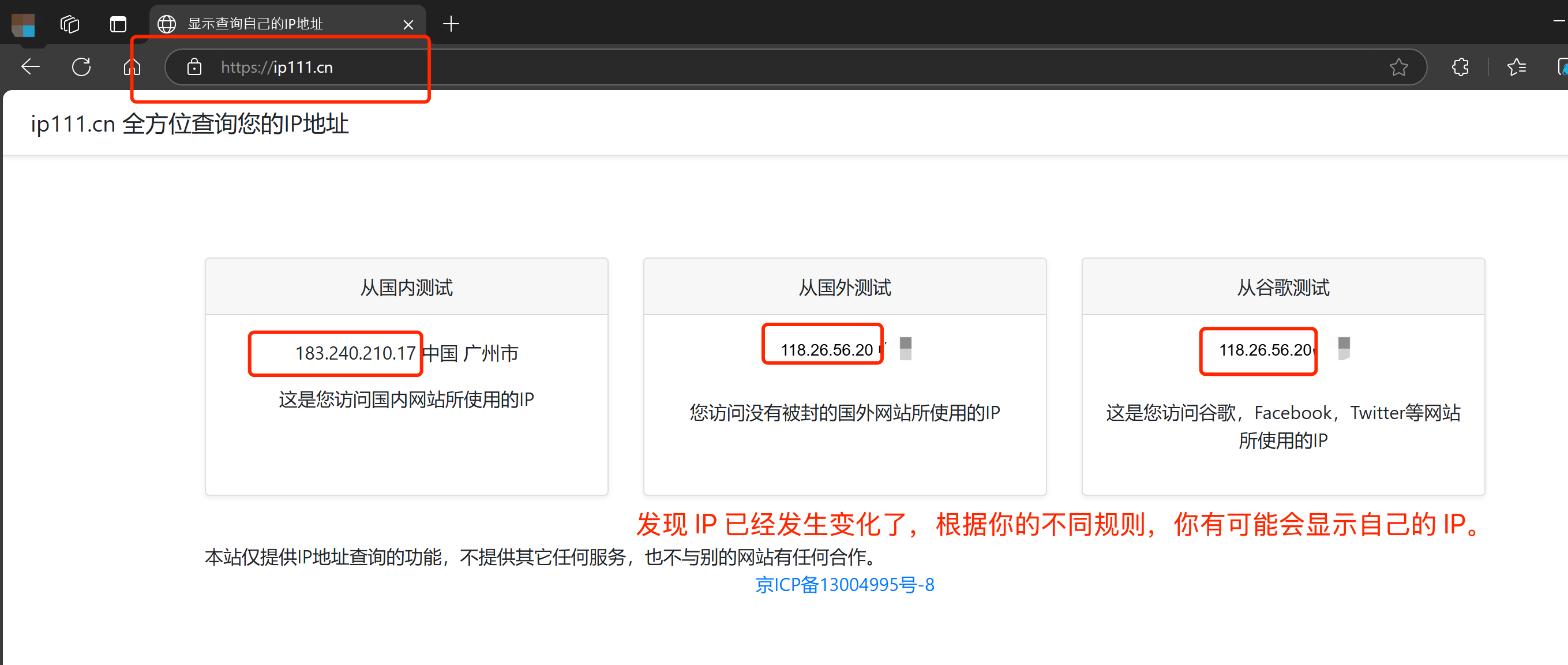
How to use Trojan (XRay)
1. 下载客户端
ClashX for MacOS
https://dl.clashx.org/releases/latest/ClashX.dmg
如果上面的地址无法下载,请使用这个地址:
2. 点击导入
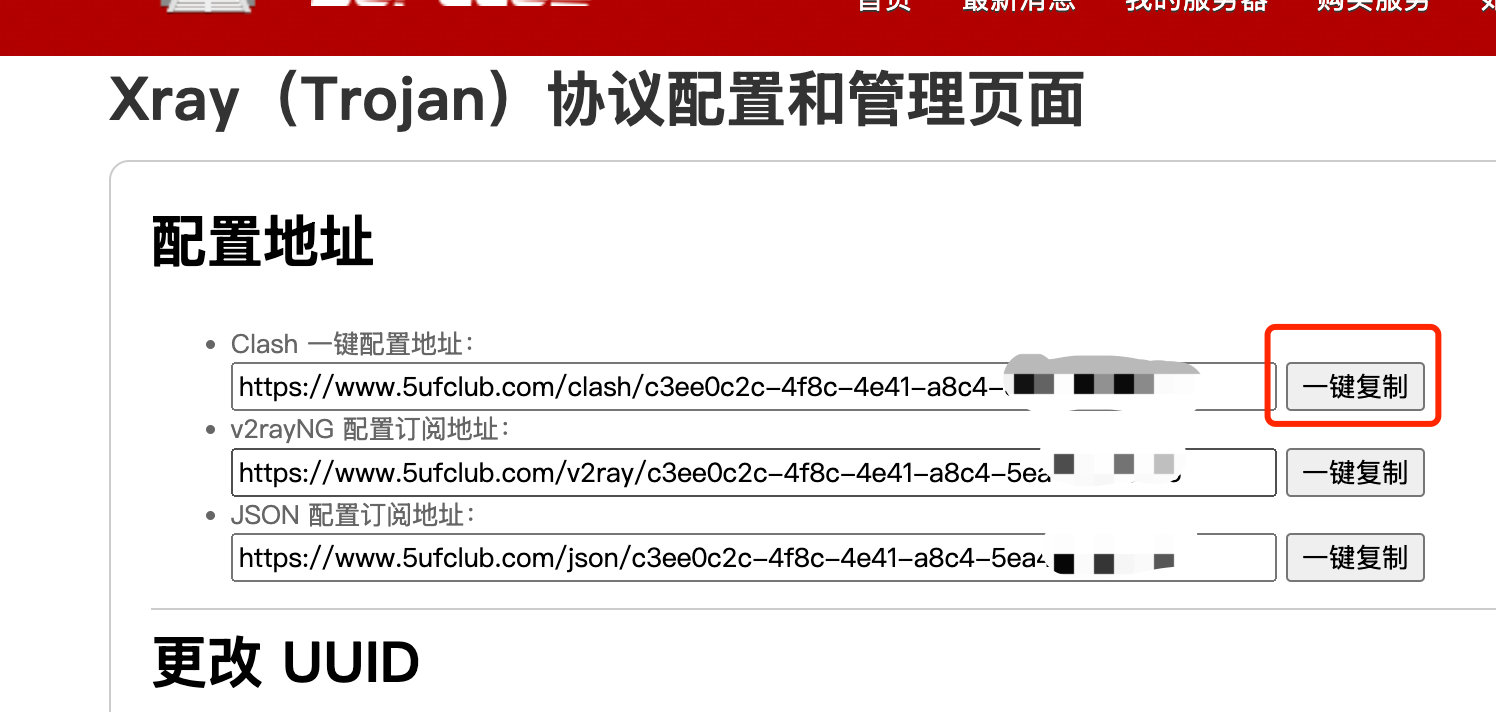
从我们的网站上获取订阅地址
https://www.5ufclub.com/xray_config
改入到软件的配置中,如下图:
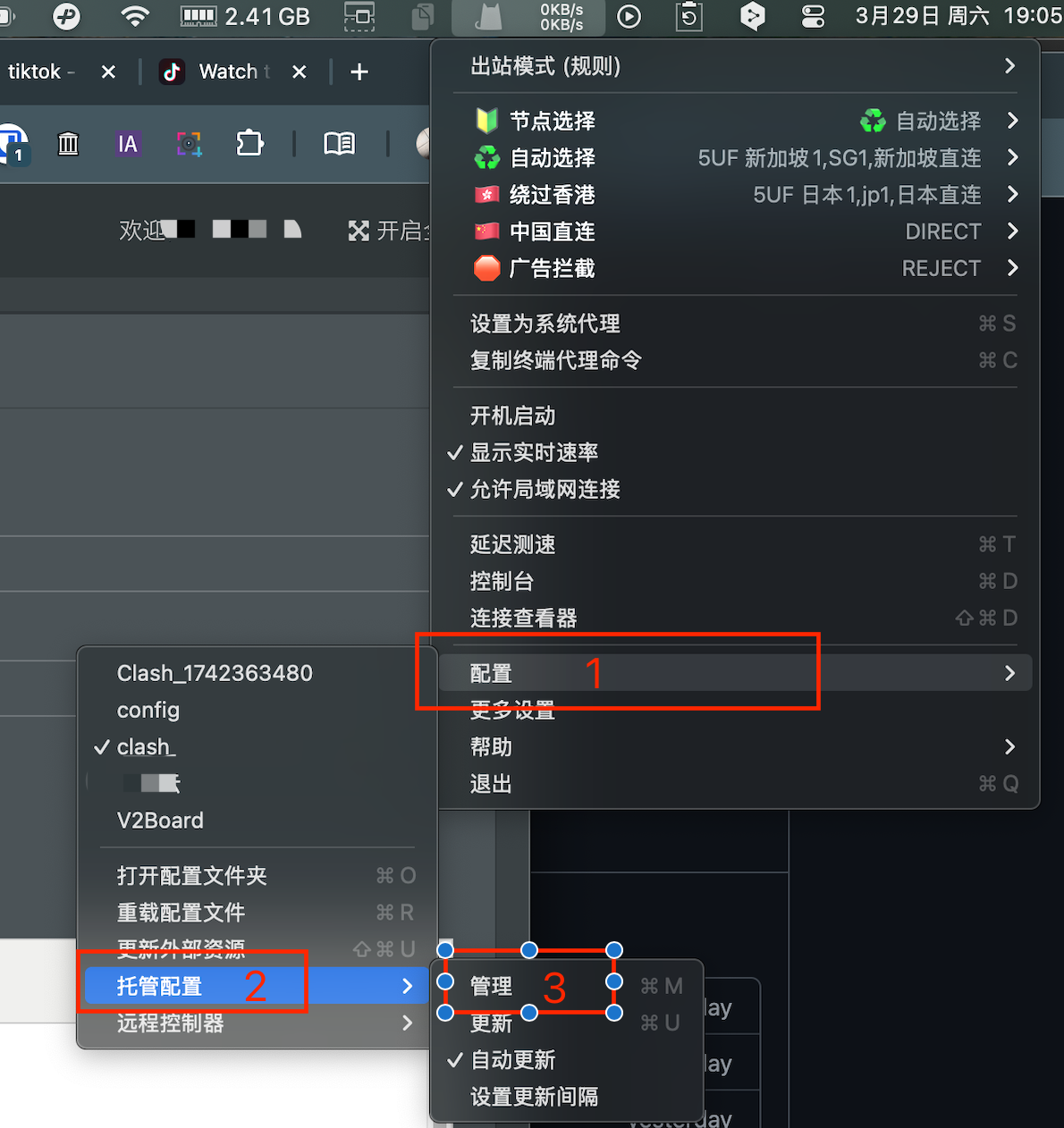
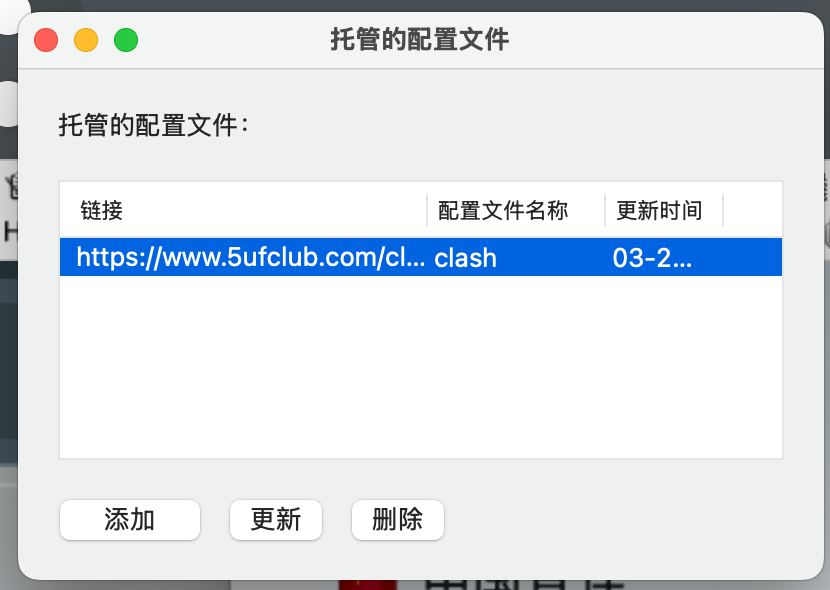
3. 使用
开始使用
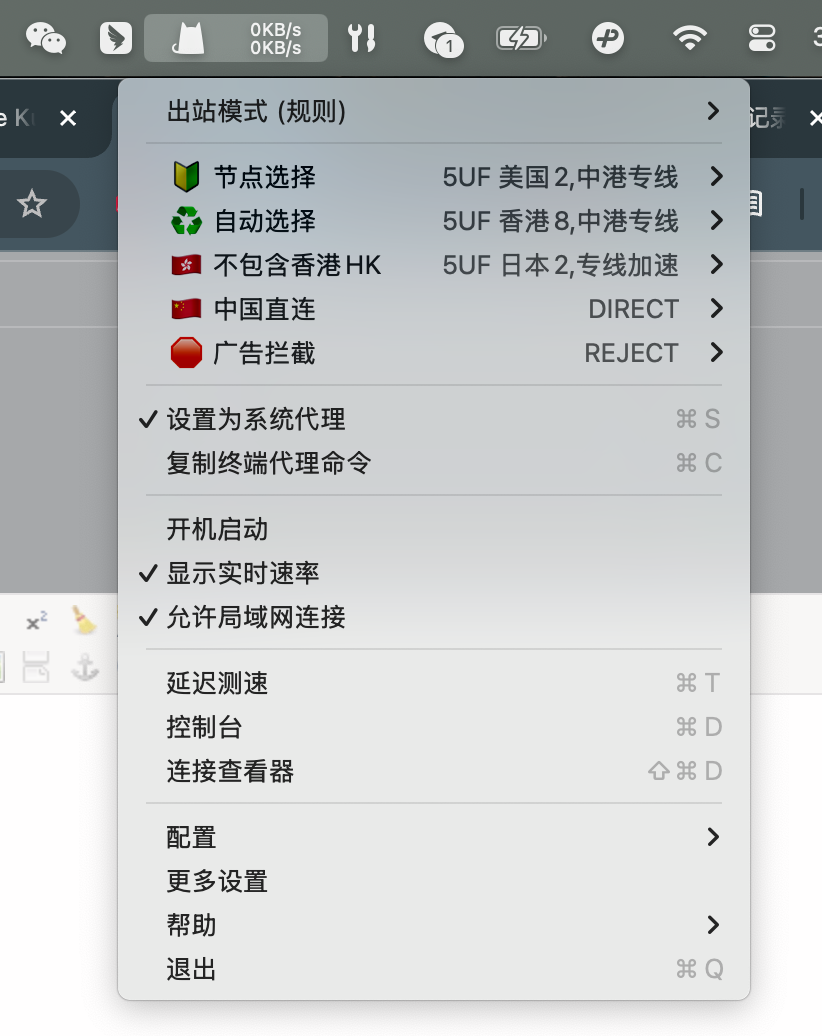
打开“设置为系统代理”
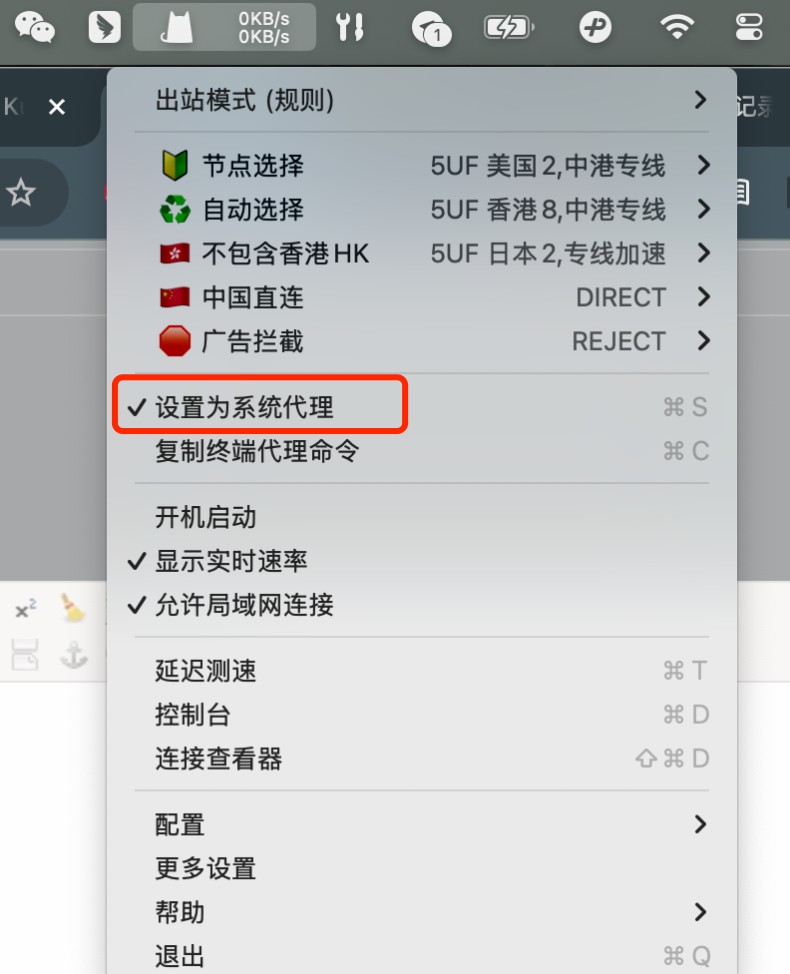
提醒:如果和超级 VPN 同时使用可能会有冲突,需要禁用掉chrome 的相关插件,是禁用整个插件,如果有其它代理类的插件也是一样会干扰使用。
How Android to use Trojan with 5UF club?
1.下载
APP1:Clash for Android
https://dl.clashforandroid.org/releases/latest/
以下是备用下载地址:
cfa-2.5.12-premium-universal-release.apk
APP2:v2rayNG
另一个 APP v2rayNG 的使用方法见下面的链接:
https://www.5ufclub.com/news/vpn/id/11149/
2.导入5UF 的你的专用订阅地址
3.使用
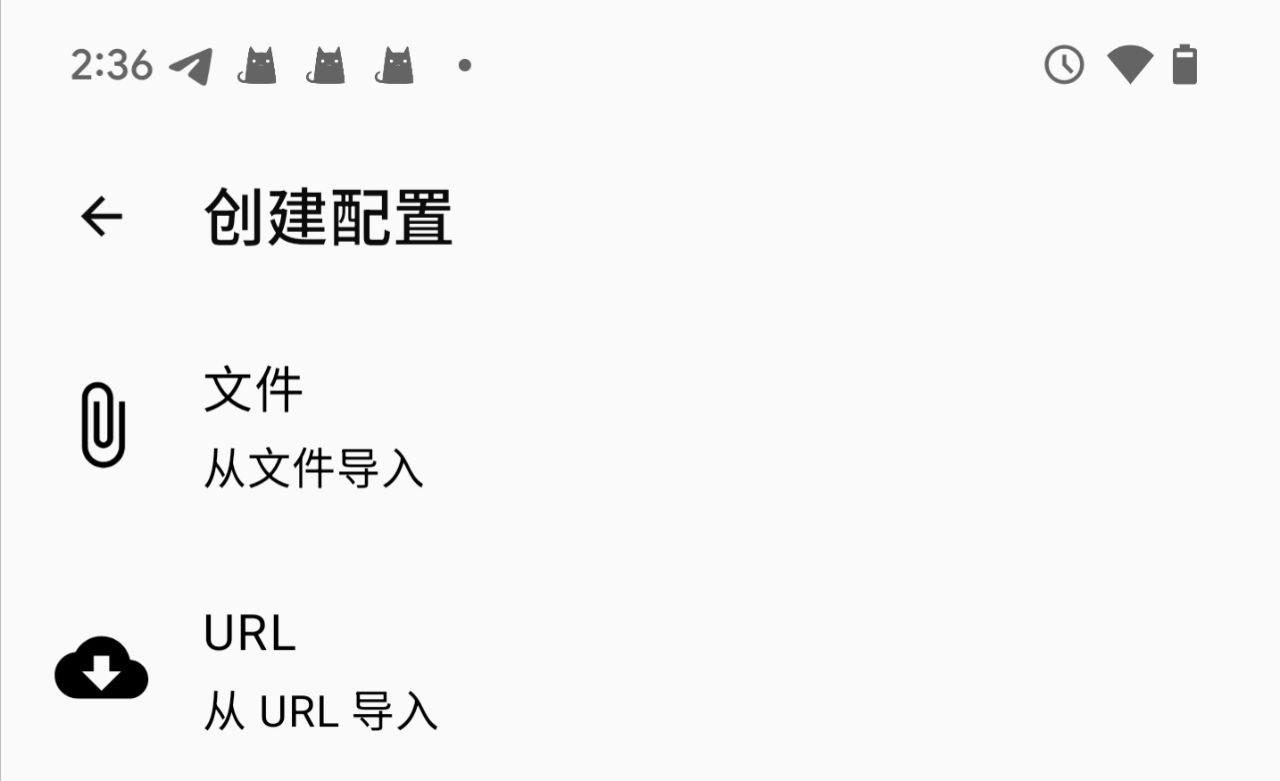
打开 Clash 的“配置“->“+”->"URL(从 URL 导入)"->“URL 粘贴上面复制到的地址”。
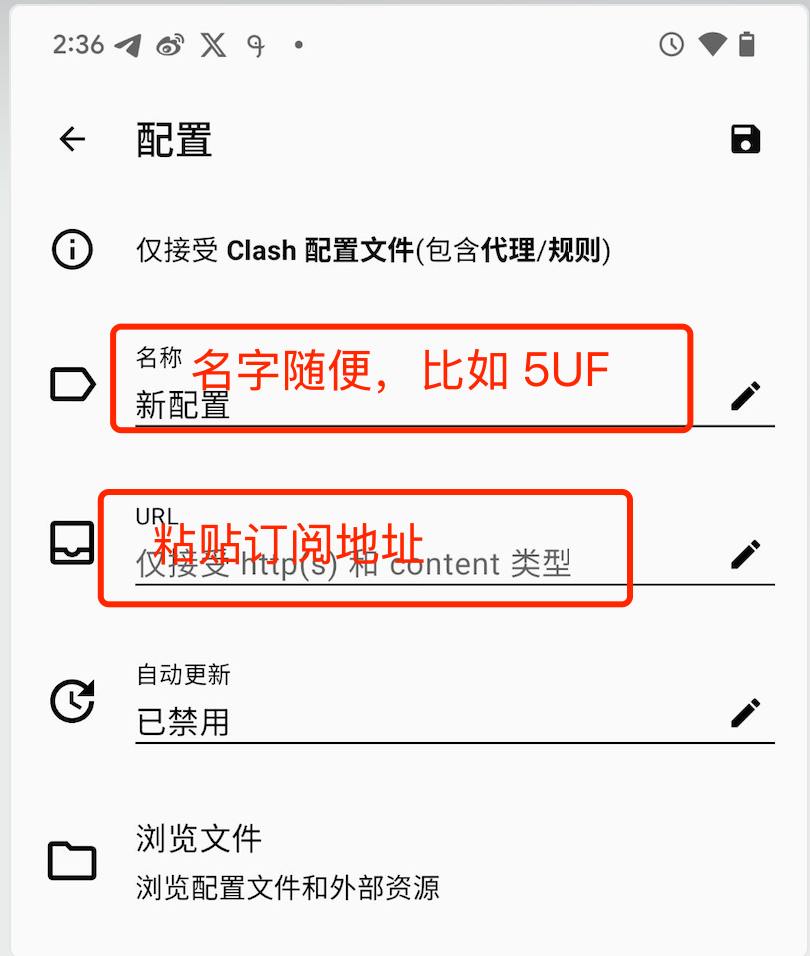
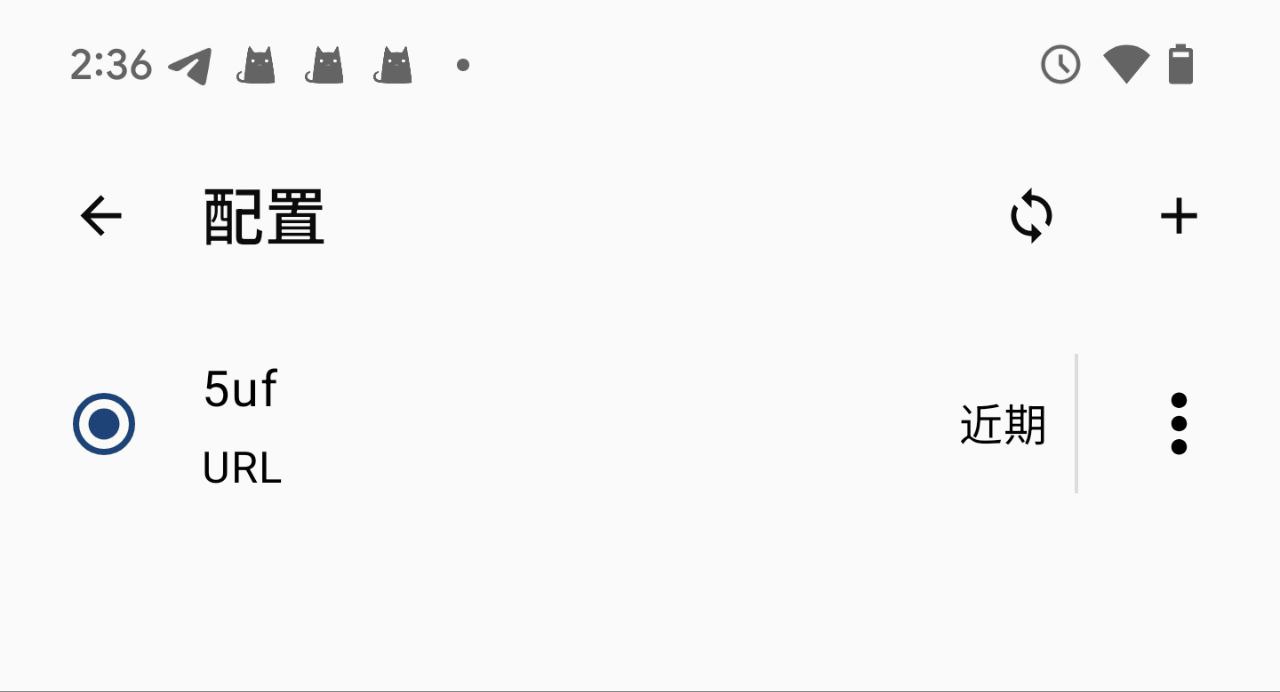
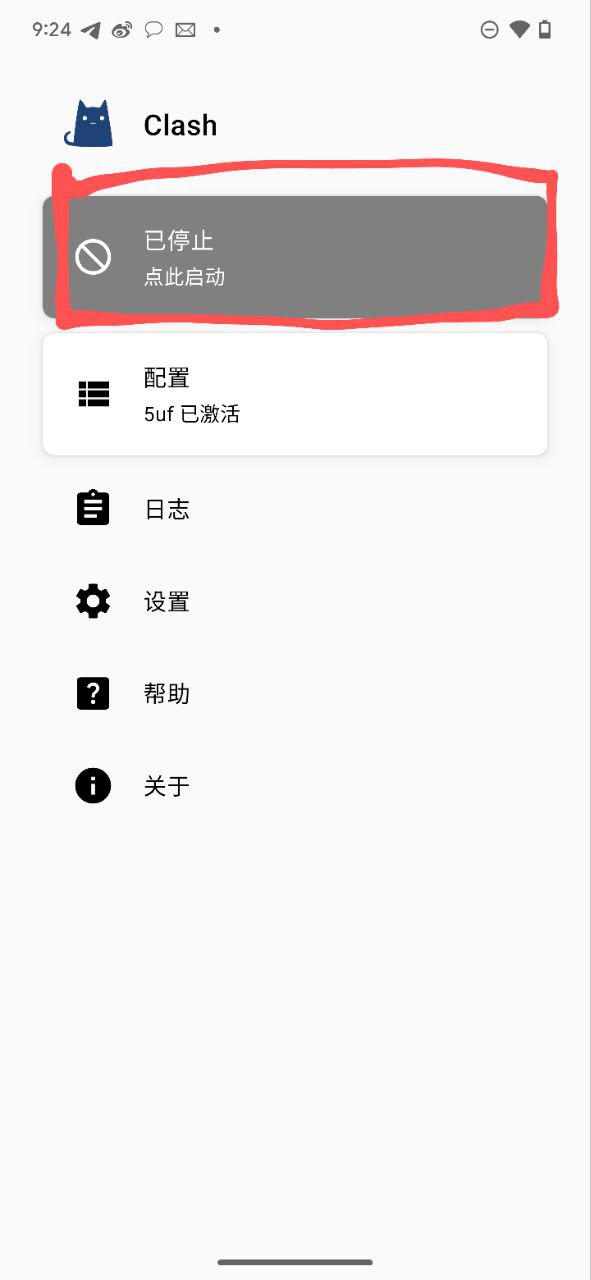
返回主界面,如下图,点击“已停止”开始你的服务。
状态变成了“运行中”
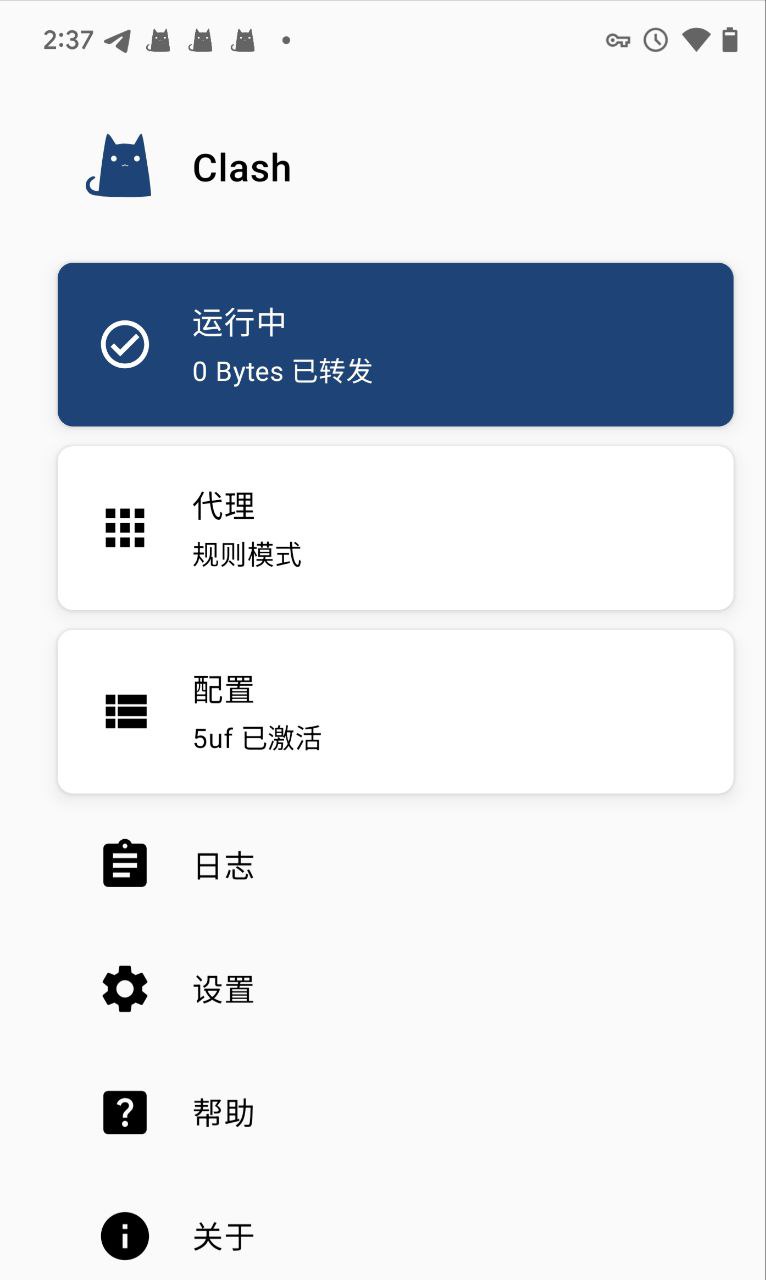
打开网址如: ip111.cn,看一下是否 IP 有变化。
iPhone iPad to use trojan
1. Download the client
IOS currently supports
Sing-box VT: https://apps.apple.com/us/app/sing-box-vt/id6673731168
Shadowrocket: https://apps.apple.com/us/app/shadowrocket/id932747118
Stash: https://apps.apple.com/us/app/stash-rule-based-proxy/id1596063349
Quantumult X: https://apps.apple.com/us/app/quantumult-x/id1443988620
You need an Apple account outside of mainland China to download these apps.
2. Click Import
Get the subscription address from our website
https://www.5ufclub.com/xray_config
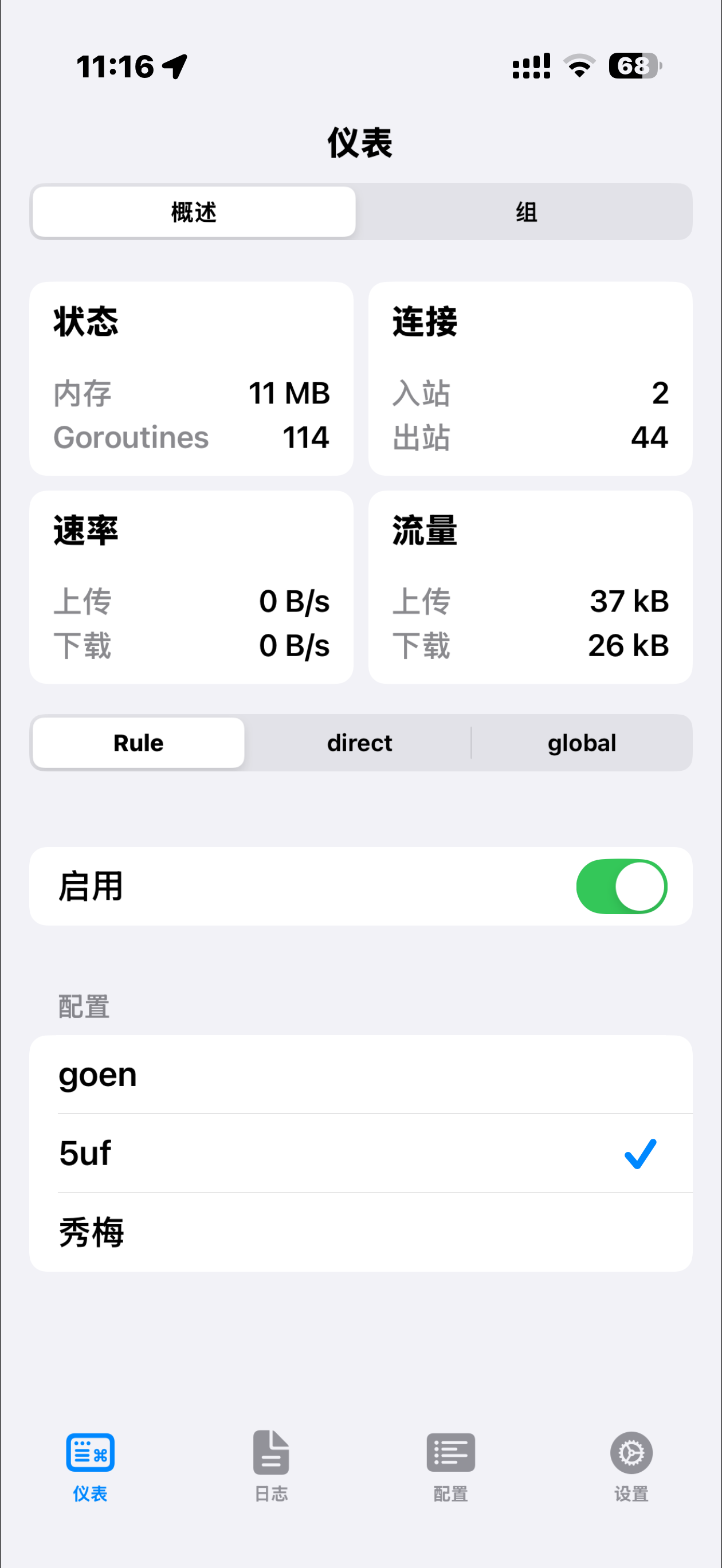
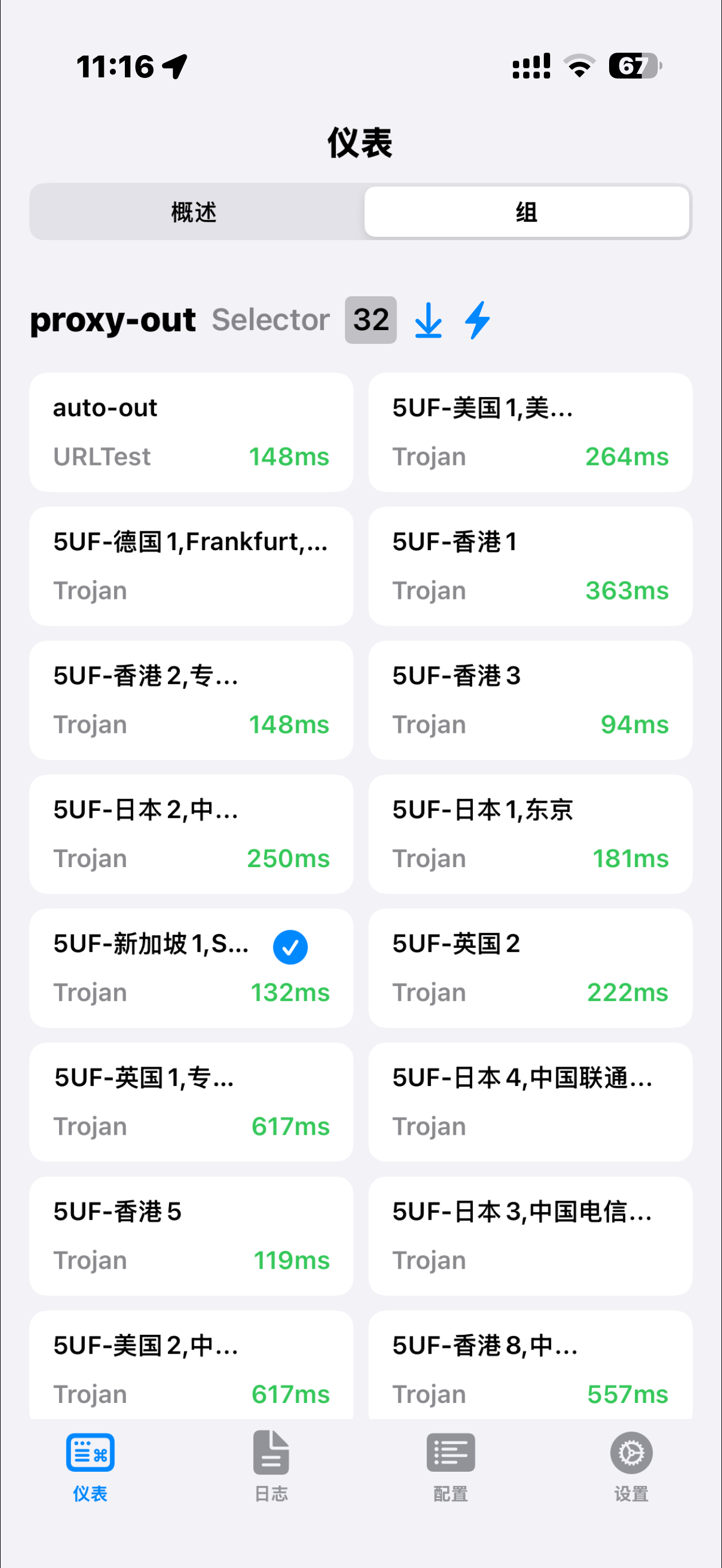
3. Use
Get started
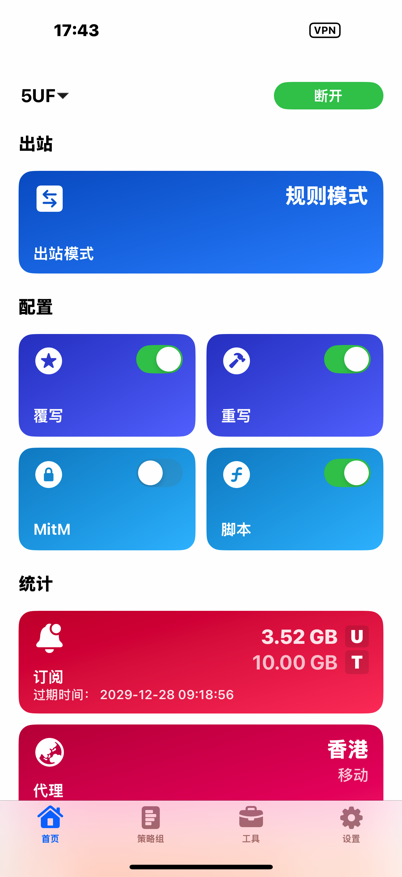
可以展示订阅的信息,如流量和到期时间
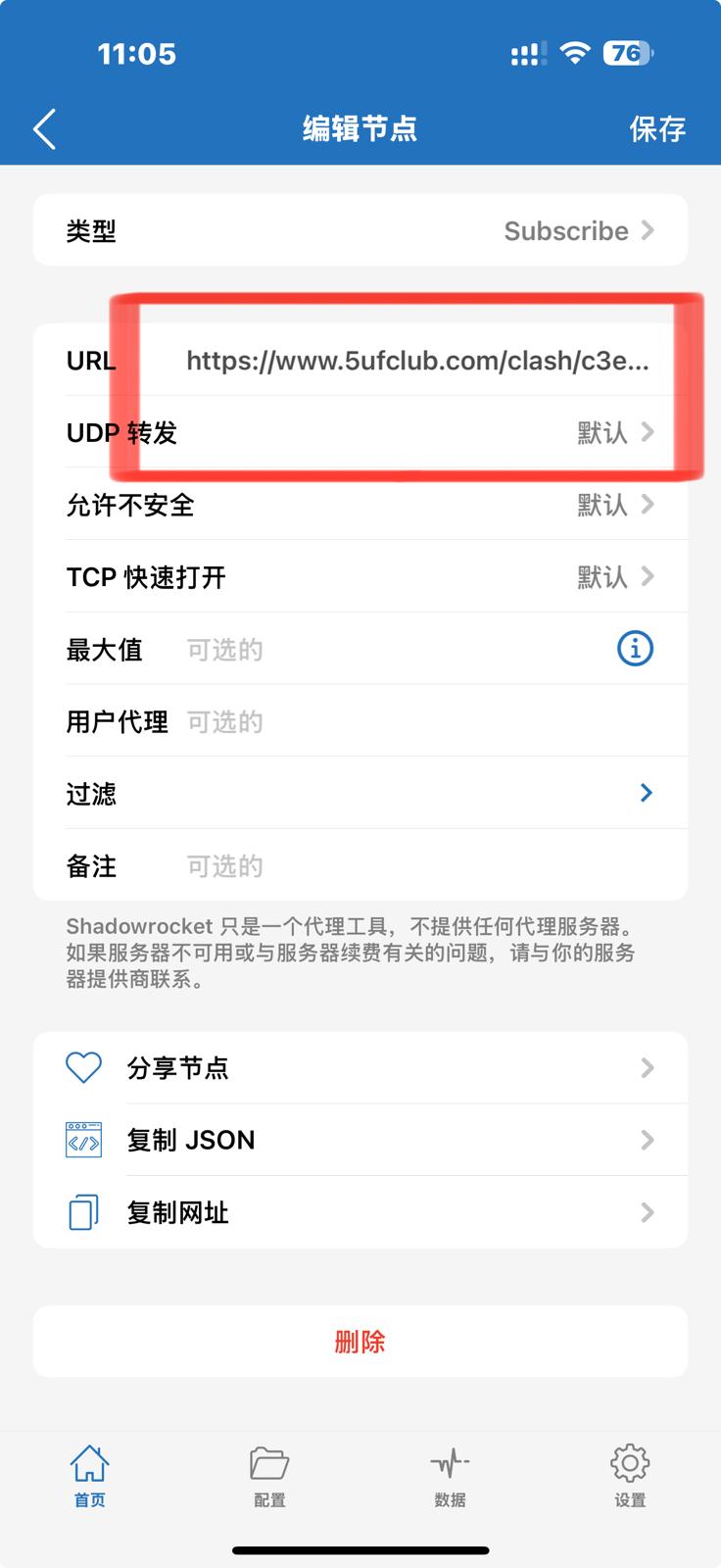
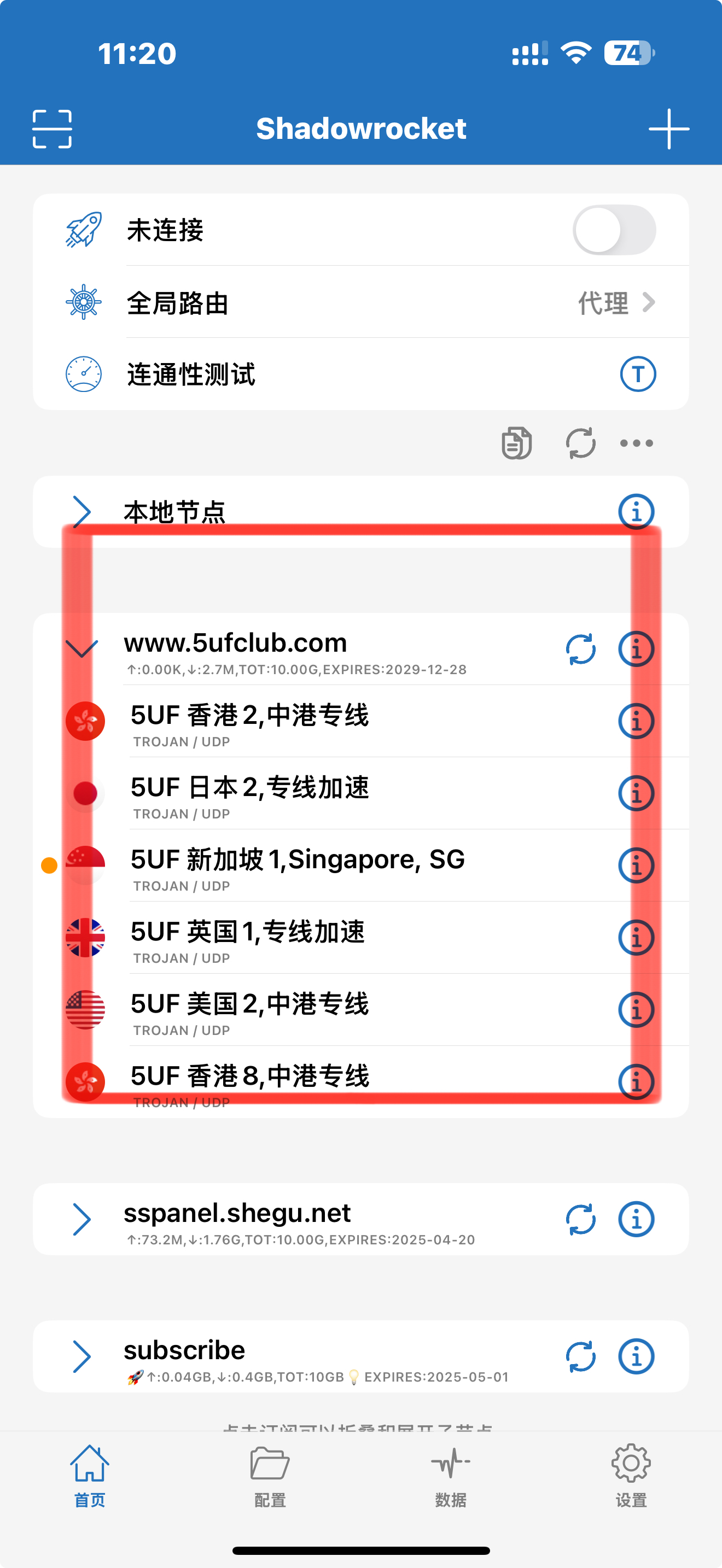
2.使用 Shaowrocket 的截图
点击右上角的“添加”
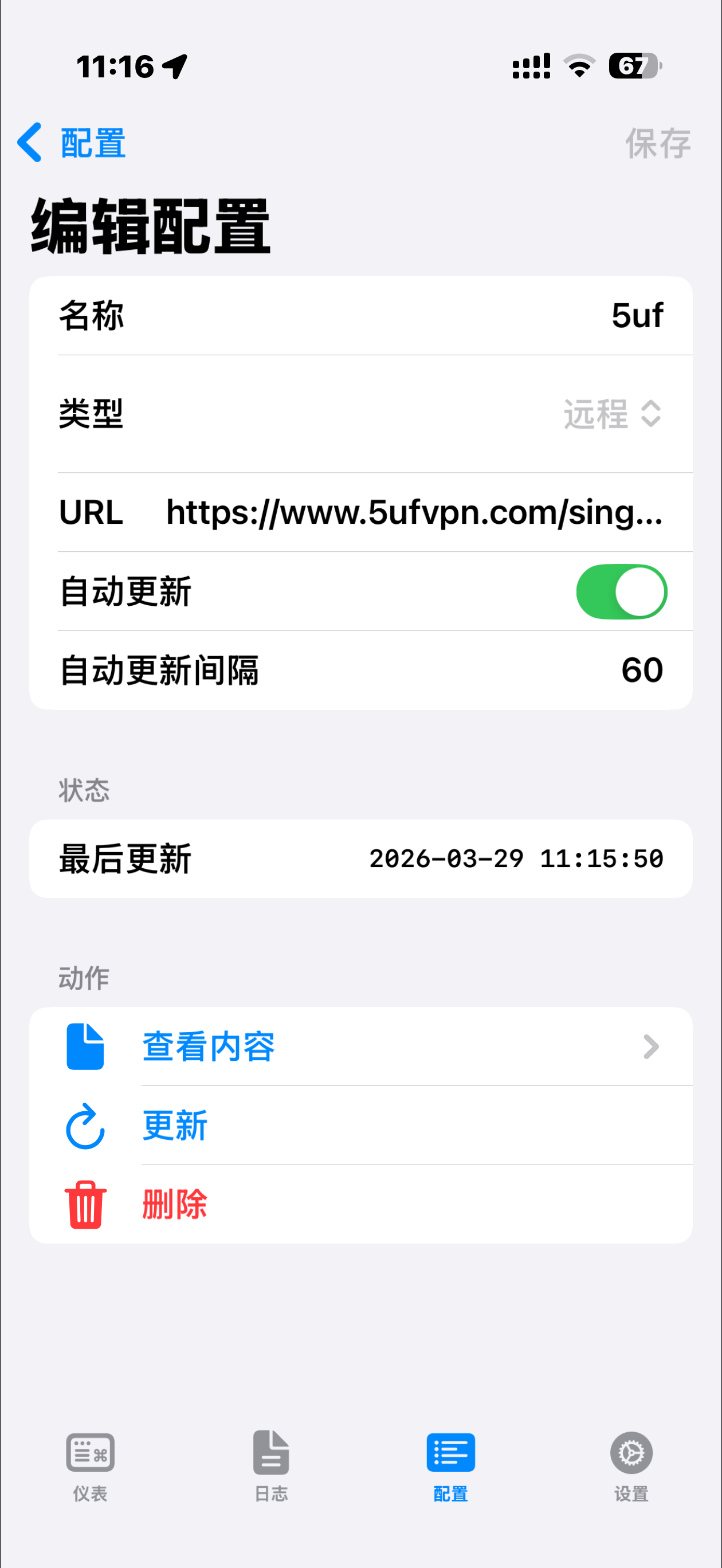
Sing-Box VT:
Introduction to Enterprise Administrator Functions
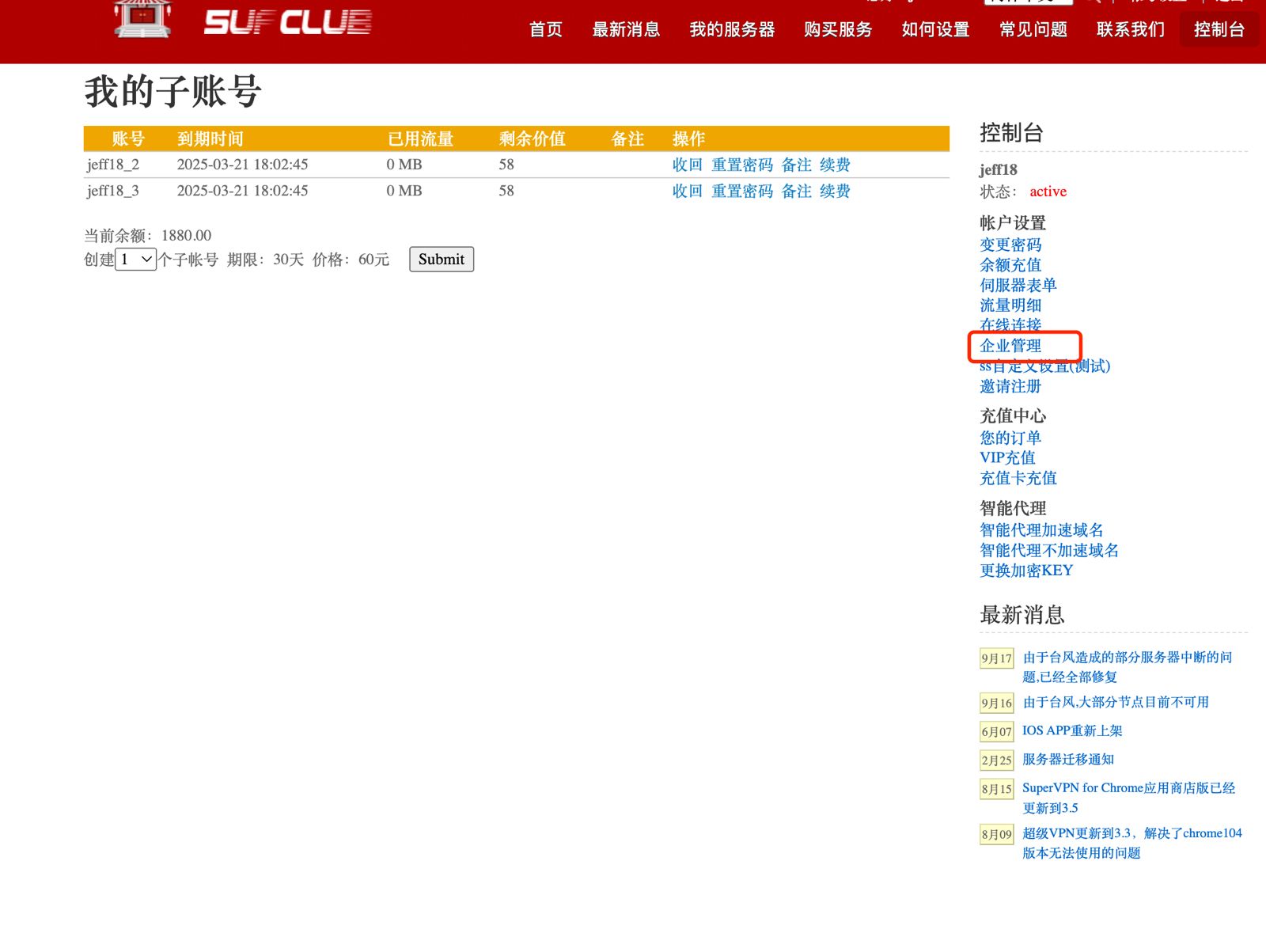
If you are an enterprise user, you can use our enterprise administrator account function, which allows you to freely assign different employee accounts. The accounts are completely independent and the traffic is not shared.
The accounts of enterprise employees are all our highest level, with no traffic restrictions and the same functions as ordinary users.
The administrator can revoke the account at any time and change the password, etc.
Download auto configuration to use VPN
After installing the app or profile helper, sign in with your 5UF account, pick a server, and follow the Safari→Settings flow to install the configuration. Legacy screenshots in the Chinese article may show older iOS layouts; if images fail to load, follow the text order.
Does the 5UF iOS app use a lot of battery?
Some users notice that the 5UF app seems to use a large share of battery in the iPhone battery report.
In most cases, this is because once VPN is enabled, iOS counts a large part of network activity under the VPN app. It does not necessarily mean the 5UF app itself is consuming abnormal battery.
A simple way to understand it:
- After VPN is enabled, app traffic goes through the VPN tunnel.
- iOS often attributes part of that network activity to the VPN app in battery statistics.
- So a higher percentage does not automatically mean the app itself is using excessive battery.
Under normal usage, you usually do not need to do anything special.
If the battery drain still feels unusually high, try:
- Updating to the latest 5UF app
- Testing again on another network
- Closing unused background apps
- Restarting the phone and checking again
If the issue remains clearly abnormal, contact support and provide your device model, iOS version, and battery screenshot.
How to install 5UF superVPN for chrome
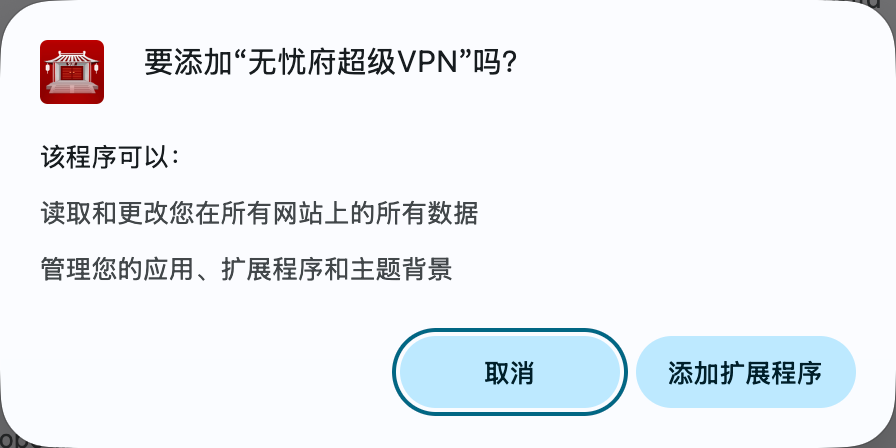
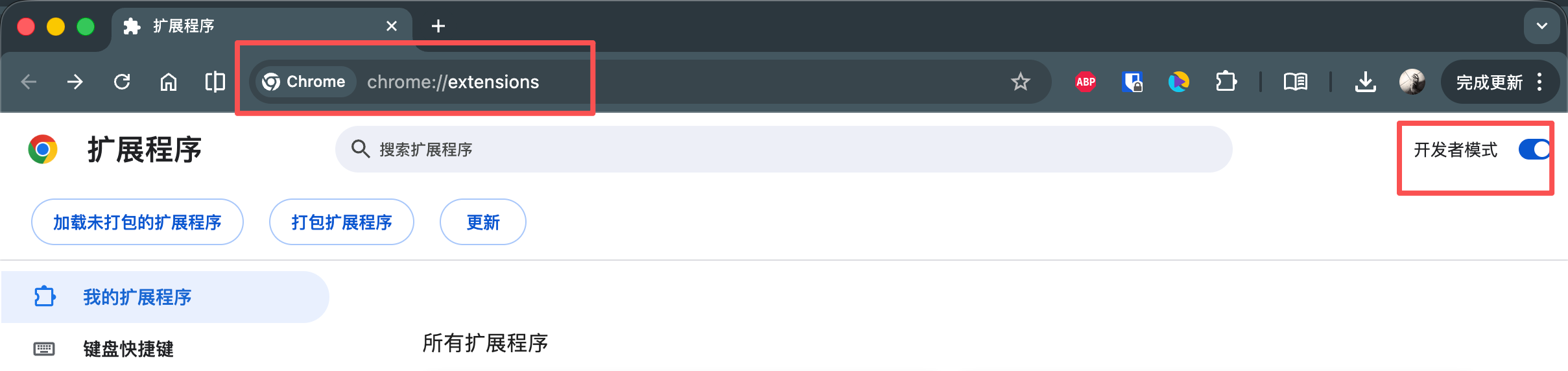
2. Enter Chrome, File menu, open "Extensions", and click "Open Developer mode“ in the upper right corner.
3. Click Load "Load the uncompressed program" and select the uncompressed directory in step 1.
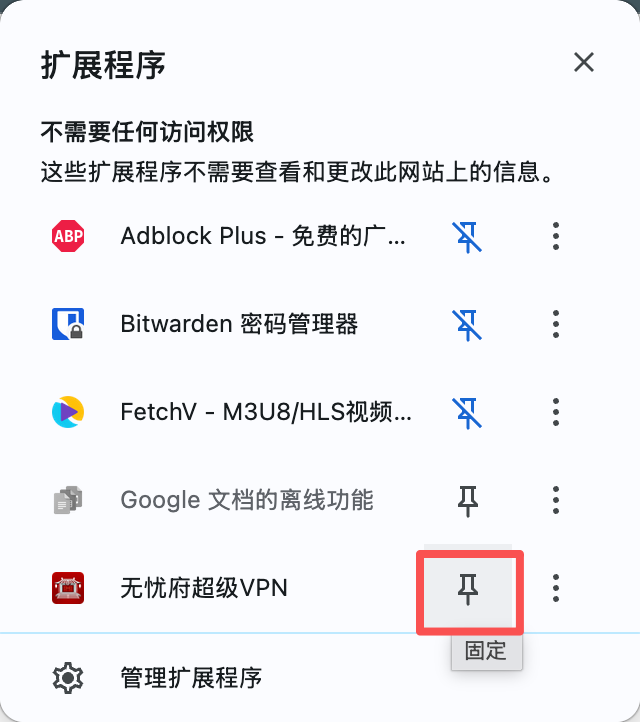
The installation is complete!
How to generate a support diagnostics file
Support may ask for a diagnostics package to analyse logs without guessing your symptoms. The Chinese instructions show where to export or upload files in the app or OS.
How to use the Xiaomi router with 5UF
Xiaomi routers may need custom routing or upstream DNS settings to work with VPN traffic. Refer to the Chinese walkthrough for your firmware version.
IKEv2 on Android with strongSwan
Use the strongSwan app on Android to import our IKEv2 profile and credentials. The Chinese guide contains per-step screens—third-party UI may differ slightly by version.
-
1 month · Unlimited Traffic
Standard rate
Supports 1 device online; you can buy more connections
$8.39 USD
-
6 months · Unlimited Traffic
20% off
Supports 1 device online; you can buy more connections
Pay for 4.8 months, get 6 months (save 1.2 months)
$40.28 USD
-
1 year · Unlimited Traffic
40% off
Supports 1 device online; you can buy more connections
Pay for 7.2 months, get 12 months (save 4.8 months)
$60.42 USD
News
-
Mar 245UF VPN iOS 9.2 Released: Fixes Critical Connection Performance Issue
-
Mar 21English|5UF VPN Browser Extension v4.2 Release Notes
-
Mar 125UF VPN Completes Full Platform Update-New In-App Ticket Support System Now Available Across All Platforms
-
Mar 12Official Website Redesign for 2026
-
Dec 115UF 5.3 Update — Essential Bug Fixes Across Windows, Mac, Linux, and Android!
-
Dec 10🎉 5UF VPN – 15th Anniversary Special Announcement


